
After a host move or a credential change, PrestaShop still reads its MySQL settings from a config file – not from the Back Office. If host, database name, user, or password no longer match the server, the storefront and admin stop loading. This guide shows how to change PrestaShop database connection settings safely, clear the cache that can keep old values, and check the usual failure messages.
From PrestaShop 1.7 onward (including 8 and 9), PrestaShop database connection settings live in app/config/parameters.php. Older 1.5 – 1.6 shops use config/settings.inc.php. Official notes on that file are in the PrestaShop 9 developer docs (parameters.php). Wrong values take the shop offline, so take a full PrestaShop backup before you edit anything.
When you need to change the PrestaShop database connection
You usually edit these settings when:
- You migrated the shop to a new host or VPS and the provider gave a new host, DB name, user, or password.
- You renamed the database or rotated the MySQL password in the panel.
- You restored files onto a server that already has a different database.
- The front or Back Office shows a database connection / access denied error after a move.
You do not change this file to rename products, change the shop email, or fix SEO URLs. Those are separate screens. If the shop is already online and you only want a safer dump before a migration, start with the backup guide linked above.
PrestaShop 1.7, 8, and 9 – edit parameters.php
To change the PrestaShop database connection on a modern shop, use SFTP, SSH, or your host’s file manager. Work on a copy if you can, then replace the live file in one step.
- Open the shop root and go to
app/config/parameters.php. - Download a copy to your computer (rollback insurance).
- Find the
parametersarray keys:database_host,database_port,database_name,database_user, anddatabase_password. - Replace only those values with the ones from the new host (or the new password). Leave
database_prefixalone unless you truly renamed every table prefix. - Save and upload the file back with the same permissions as before.
- Clear the Symfony/PrestaShop cache (next section), then open the front office and Back Office in a private window.
Host names vary by provider: localhost, 127.0.0.1, a remote hostname, or sometimes a socket path. Copy the host string from the panel exactly – do not guess. Leave database_port empty when the panel does not specify a non-default port; set it (often 3306) only when the host tells you to.
Example shape (placeholders only – never paste sample secrets into production):
<?php
return array (
  'parameters' =>
  array (
    'database_host' => '127.0.0.1',
    'database_port' => '',
    'database_name' => 'your_database_name',
    'database_user' => 'your_database_user',
    'database_password' => 'your_database_password',
    'database_prefix' => 'ps_',
    'database_engine' => 'InnoDB',
    // … other keys stay as on your shop - do not invent new secret/cookie values
  ),
);
Change only the database keys you were given. Touching secret, cookie_key, or cookie_iv logs everyone out and can break sessions – that is a different recovery path. A correct PrestaShop database connection in this file is useless until cache is cleared (below).
Clear /var/cache after you save
PrestaShop caches compiled config. After you change the PrestaShop database connection, remove cache under /var/cache/ – mainly the dev and prod folders (and any similar environment folders). Delete those folders or their contents – not the whole shop, and not unrelated directories next to var.
Back Office works, front office does not? After a PrestaShop DB connection change, that split is almost always stale cache – clear var/cache first before you dig into themes, modules, or shop URLs.
Those dev and prod folders can be huge (tens of thousands of small files). Prefer your hosting file manager or SSH to delete or empty them. Plain FTP often crawls file-by-file and can take hours. If FTP is all you have, rename prod / dev (for example to prod_old / dev_old) so PrestaShop can recreate empty folders immediately, then delete the renamed trees later when you have time or a better tool.
- From the shop root, open
var/cache/. - Delete or rename
prodanddev(and any other environment folders you see there). - If the host runs PHP-FPM as a different user, recreate empty
prod/devfolders if needed so the web server can write again. - Reload the shop. First load may be slower while cache rebuilds.
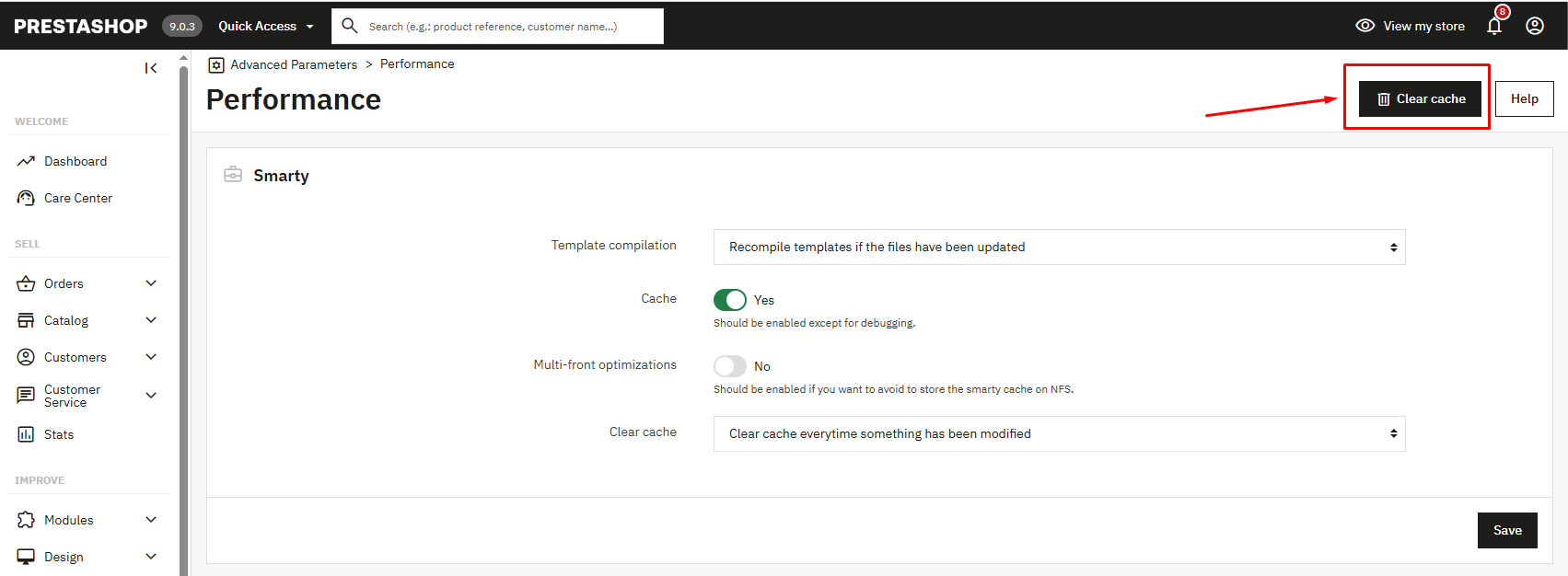
If Advanced Parameters → Performance is reachable, you can also clear cache from the Back Office – but after a bad PrestaShop database connection you often cannot log in, so file-level cleanup is the reliable path.
If the PrestaShop database connection still fails
Work through these checks before you rewrite the whole file again:
- Access denied. User or password is wrong, or the MySQL user is not allowed from this host. Reset the password in the panel and paste it carefully (no extra space or smart quotes from a chat app).
- Unknown database.
database_namedoes not match the real schema name after the move. - Cannot connect to server. Wrong
database_hostor port, firewall, or the DB service is down. Confirm with phpMyAdmin or the host’s MySQL tool using the same credentials. - Prefix mismatch. Tables exist but use another prefix than
database_prefix– the shop connects then looks empty or throws missing-table errors. - Blank page / WSOD. A syntax error in
parameters.php(missing quote or comma) can white-screen the shop. Restore your downloaded copy and re-edit. Our white screen of death guide covers debug mode when the file itself is valid but something else fails.
PrestaShop’s help center also describes the same connection error pattern and the keys to verify in parameters.php – useful when the panel wording differs from yours: Database connection error for your PrestaShop store.
Legacy PrestaShop 1.5 – 1.6 – settings.inc.php
If the shop is still on 1.5 or 1.6, open config/settings.inc.php instead and update:
_DB_SERVER_(host)_DB_NAME__DB_USER__DB_PASSWD_
Keep _DB_PREFIX_ unless you renamed tables. Save, upload, then clear whatever cache folders that old version uses (often under cache/). The same “wrong password takes the shop offline” warning applies – and a bad PrestaShop database connection here will fail the same way as on newer versions.
Quick checklist
- Backup files and database.
- Edit the PrestaShop database connection in
app/config/parameters.php(1.7+) orconfig/settings.inc.php(1.5 – 1.6). - Set host, port (if required), name, user, and password to match the panel.
- Clear
var/cache(prefer file manager or SSH; rename on FTP if delete would take forever). - Test front and Back Office; if Back Office is fine but the front is not, clear cache again before chasing other causes. If both fail, match the error to access denied / unknown DB / host unreachable before you change unrelated keys.
Once the PrestaShop database connection works again, finish the migration checklist (shop domain, SSL, mail) on the new host – connection settings alone do not update those.
For 1.7, the “database_password” was encrypted. Once I changed it, how to encrypt it and update into the /app/config/parameters.php
Hello Respected brothers ,
Today I just initialized prestashop in my webhost,
but i encountered this Error;
1. SQL error on query Specified key was too long; max key length is 1000 bytes
How may I rectify this problem I really need your assistance at the utmost urgency, Thank You
Hi, I need help with Prestashop 1.7.4.3. I want to conct my database, but I did not find the parameters.php in this directoty: app/config.
Ah, I forgot to edit these 3 tables:
PRSTSHP_SHOP_DOMAIN
PRSTSHP_SHOP_DOMAIN_SSL
PRSTSHP_SHOP_URL
Hi polosat,
Thanks for the info for Prestashop 1.7 – but I have an issue. After cloning my site using Plesk from domain A to domain B and editing the DB connection file on domain B, connecting to domain B redirects me to domain A – I feel like more needs to be configured, any ideas where?
test with this file you will find the informations of connection
/app/cache/prod/appProdProjectContainer.php