
When PrestaShop images not displaying on product pages, categories, or the home page, shoppers see broken icons instead of your catalog. The files are usually still on the server – PrestaShop just cannot serve the right path, size, or rewrite rule. This guide walks through a quick diagnose step, how images are stored, common causes, and the fixes that clear most cases without a full reinstall.
Diagnose first (two minutes)
Before you touch permissions or regenerate everything, pin down how PrestaShop images not displaying actually fails in the browser:
- Open the image URL alone – right-click a broken image → Open image in new tab. Note the status: 404 (file or rewrite missing), 403 (permissions / hotlink rules), or the image loads while the page still looks broken (theme or lazy-load module).
- Check the browser console – mixed-content warnings mean the page is
https://but thesrcis stillhttp://. - Compare Back Office vs storefront – if the product form shows the photo but the FO is empty, thumbnails, Friendly URL rewrites, or the shop domain are the usual suspects. If both sides are empty, look for a missing file on disk or a database row without a matching file.
- Toggle Friendly URL once – Shop Parameters → Traffic & SEO. If images appear only with Friendly URL off, fix
.htaccess/ Nginx image rules before regenerating the whole catalog.
PrestaShop keeps originals and generated sizes under the shop root /img/ folder. Knowing which directory holds which assets saves time when you are hunting a missing file:
/img/p/– product images. Uploads are split into nested folders (for example/img/p/1/2/12.jpgfor product ID 12). PrestaShop also builds thumbnail variants for listing grids, carts, and the product page./img/c/– category images, with their own thumbnail sizes./img/cms/– images used in CMS pages. These usually skip the product-style thumbnail pipeline, so regenerating product thumbnails will not repair a broken CMS media path.
If the storefront URL for an image 404s while the file exists on disk, look at permissions, .htaccess / Nginx rewrites, and thumbnail types before you re-upload every photo. Friendly URL problems often sit next to image path failures – see solving PrestaShop SEO URL rewriting problems when product links and media URLs break together.
Common causes when PrestaShop images not displaying
- Wrong file permissions – the web server cannot read (or write) files under
/img/. - Broken or incomplete
.htaccess– especially after a move, HTTPS switch, or manual edit. - Wrong shop domain, SSL domain, or base URI – after a migration, image URLs still point at the old host or folder.
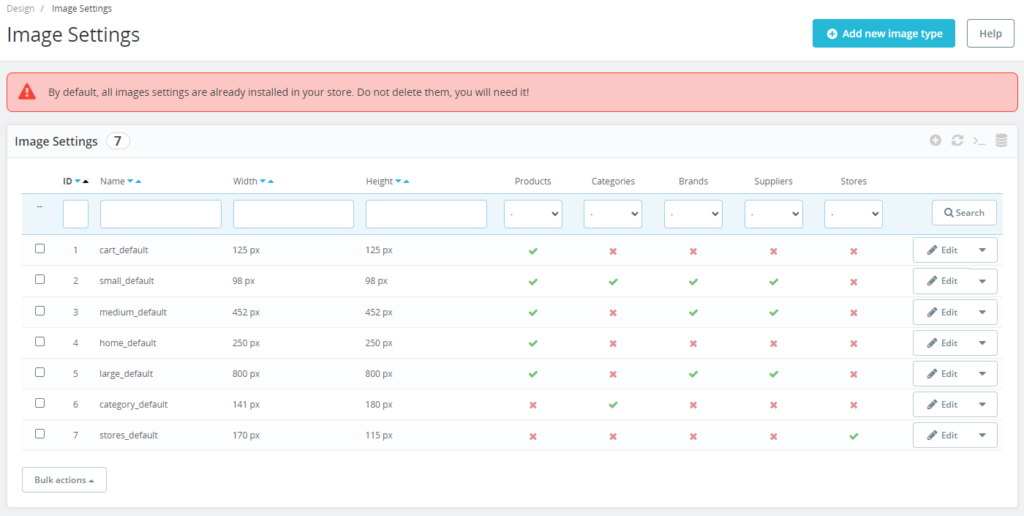
- Image type settings – missing or zero-size formats in Design → Image Settings.
- Interrupted thumbnail regeneration – some sizes never finished writing.
- Missing PHP image library – GD or Imagick not installed, so regeneration cannot create files.
- Image-related modules – lazy load, CDN, watermark, or optimizer modules failing.
- Stale cache – PrestaShop cache, a cache module, or the browser still serving old URLs.
- Post-upgrade or filesystem mismatch – theme expects new image types, or legacy vs new
/img/p/layout after an old-shop move. - Nginx rewrite gaps – Apache-style rules from PrestaShop do not apply; image routes need server config.
Mixed content after forcing HTTPS is another frequent culprit: the page loads over https:// while image tags still point at http://, so modern browsers block them. Confirm shop and media URLs use HTTPS in Shop Parameters → Traffic & SEO (and in any CDN module).
How to fix PrestaShop images not displaying
- Fix permissions on
/img/– via FTP or the host file manager, directories are usually 755 and files 644. Try 775 / 664 only if your host requires group write. Avoid 777 / 666 except as a short test, then lock permissions back down. The web user must also be able to write here or thumbnail regeneration will fail silently. - Correct the shop URL after a move – in Shop Parameters → Traffic & SEO, set Shop domain, SSL domain, and Base URI to the live host (including the subdirectory if the shop is not at the domain root). Save so PrestaShop rewrites
.htaccess. Wrong domains are a top reason for PrestaShop images not displaying right after migration. If imagesrcattributes still show the old host, clear cache and check CDN settings next. - Regenerate
.htaccess– on the same SEO & URLs screen, save Friendly URL settings so the root.htaccessis rebuilt. Re-check a product image URL in a private browser window. - Confirm GD or Imagick – PrestaShop needs a PHP image extension to resize uploads. On the server, check that PHP GD (or Imagick) is enabled for the same PHP version the shop uses. Without it, Design → Image Settings may look fine while no new thumbnails appear on disk.
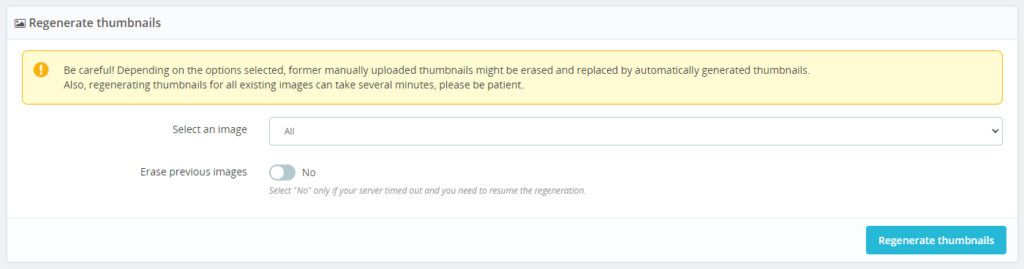
- Review image types and regenerate thumbnails – go to Design → Image Settings. Confirm each format used by your theme has sensible width/height. Run Regenerate thumbnails. Official upgrade notes also call this out when images disappear after a version jump – see the PrestaShop post-update checklist. This step alone fixes a large share of “broken thumbnail” cases.
- Resume a stuck regeneration – if the progress bar stopped mid-run, submit the form again with Erase previous images unchecked so PrestaShop continues instead of wiping finished sizes and starting from zero. On large catalogs, regenerate one image type at a time so a timeout does not hide where it failed.
- Legacy vs new product image paths – shops moved from very old PrestaShop versions sometimes still store files in a flat layout while the current shop expects nested folders under
/img/p/(or the reverse). In Image Settings, use the option to move images to the new filesystem when it matches your data – then regenerate. Do not flip that toggle blindly on a live shop without a backup. - Isolate image modules – disable recent lazy-load, WebP, CDN, or watermark modules, clear cache, and retest. Re-enable one at a time to find the offender.
- Clear caches – Advanced Parameters → Performance → clear cache. Flush any cache/CDN module. Hard-refresh or clear the browser cache so you are not looking at an old broken URL.
- After an upgrade – clear cache, regenerate thumbnails, and confirm the active theme’s required image types still exist in Image Settings. A theme update that adds a new format will show empty slots until that type is generated.
- Nginx – PrestaShop cannot write Nginx config for you. Ask the host (or your sysadmin) to map image and legacy rewrite rules correctly; compare against a known-good PrestaShop Nginx snippet for your major version.
If the Back Office itself whitescreens while you work through these steps, treat that as a separate PHP/error-log problem first – start with the white screen of death troubleshooting guide, then return to image regeneration.
Still seeing PrestaShop images not displaying after permissions, domain/URL checks, rewrites, regeneration, modules, and cache? Restore /img/ (and matching database image rows if needed) from a known-good backup. Re-uploading hundreds of products by hand is slower and easy to mismatch against combination images.
Keep images working after the fix
- Back up regularly – include the full
/img/tree and the database, not only PHP files. - Test on staging – try theme switches, image optimizer modules, and major upgrades on a copy before the live shop.
- Spot-check after big changes – after each upgrade, migration, or CDN change, open one category listing and one product page on mobile and desktop. Confirm thumbnails and zoom images load so you catch PrestaShop images not displaying before customers do.
Most “PrestaShop images not displaying” tickets end with a correct shop domain, readable /img/ permissions, a fresh .htaccess (or correct Nginx map), working GD/Imagick, and a completed thumbnail regeneration with erase disabled on retry. Work those before you rebuild the catalog.