
Friendly URL is on, yet product links still look like index.php?id_product=12 – or every pretty path returns 404. PrestaShop URL rewriting only works when the Back Office toggle, the root rewrite file (Apache), and the web server rules agree. This is a 5-step checklist: pick your symptom, confirm the shop setting, fix the server layer, prove one URL, then clean duplicates and old 404s.
Generic “enable Friendly URL” advice is easy to get from a chatbot. What usually wastes hours is running the wrong fix for your symptom – or skipping the pass/fail check after each step. Work the list in order. Official labels are under Shop Parameters → Traffic in the PrestaShop 9 docs. Before you edit server config, take a full PrestaShop backup.
Step 1 – Name what is broken
Open a product page in a private window and note which case you have. Do not skip this – the three cases need different fixes.
- A – Ugly URLs still. The address bar still shows
id_product,id_category, orcontroller=after you enabled Friendly URL. PrestaShop is not emitting rewritten links (or cache is serving an old page). - B – Pretty URLs 404. Links look correct (
/category/product-slug) but every pretty path returns Not Found. The shop is generating slugs; the web server is not routing them into PrestaShop. - C – Works on one domain only. The main shop is fine; a multistore domain, subdomain, or subdirectory shop fails. That is often shop URL / DNS / document root – not a second Friendly URL bug. See our PrestaShop multistore guide in parallel with this checklist.
Pass: you can point to A, B, or C before you touch Apache or Nginx.
Step 2 – Confirm Friendly URL in the Back Office
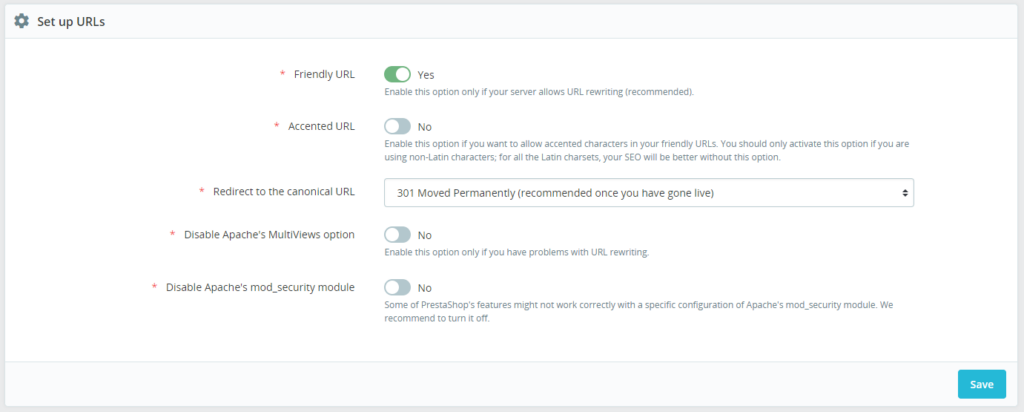
- Go to Shop Parameters → Traffic & SEO.
- Open Set up URLs.
- Set Friendly URL to Yes and save.
- Clear PrestaShop cache (Advanced Parameters → Performance) and retest the same product in a private window.
On Apache, saving this page should create or refresh the root .htaccess with PrestaShop rewrite rules. If the file is missing, empty, or older than your save, PHP cannot write the shop root – fix ownership/permissions before you chase modules.
On Nginx, the toggle alone never installs rewrite rules. You still need Step 3.
Pass (case A): after cache clear, new HTML links use slugs (even if those slugs still 404 – that becomes case B). Pass (case B/C): Friendly URL is Yes and stays Yes after reload.
Step 3 – Fix the server layer (Apache or Nginx)
Check Advanced Parameters → Information → Server information (or ask the host). Follow only the branch that matches your server.
If you are on Apache
- Enable
mod_rewrite(often on by default). - Confirm the shop document root has a readable
.htaccessthat PrestaShop updated on the last SEO save. - AllowOverrides must permit rewrite directives for that directory.
- Subdirectory installs need a matching
RewriteBase. - Custom rules above PrestaShop’s block can short-circuit rewriting – temporarily move extras below the PrestaShop section to test.
- After a manual edit, flip Friendly URL off/on once and save so PrestaShop rewrites its own section, then re-add only the custom lines you still need.
Pass: pretty product URL returns HTTP 200 with the correct product (not the host’s default 404 page).
If you are on Nginx
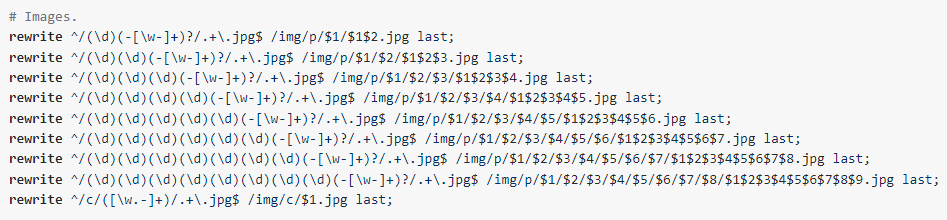
Nginx ignores .htaccess. Edit the site server block (often under /etc/nginx/sites-available/):
- Add the current PrestaShop Nginx rewrite sample from the PrestaShop 9 Nginx docs (keep your real root and PHP-FPM socket).
- Run
nginx -t. - If the test passes, reload:
systemctl reload nginx(or your host’s control-panel equivalent).
If a chatbot pasted an old sample, replace it with the official block for your major version. Paths and try_files lines drift; forum snippets from years ago are a common cause of case B.
Pass: same as Apache – pretty URL → 200 → correct product. If a CDN or reverse proxy sat in front while you were broken, purge its cache once so it stops serving cached 404s.
Step 4 – Prove PrestaShop URL rewriting end to end
Do not stop at “links look pretty in the menu.” Run this quick proof on one product:
- Private window: open the product from the category listing.
- Address bar shows a slug path, not only
id_product. - Copy that pretty URL, open it in a new tab: HTTP 200, same product.
- Optional: request a known wrong slug – you should get your shop 404 theme, not a blank web-server page that never hit PrestaShop.
If Step 4 fails only on a second domain while the main domain passes, return to case C (multistore URL / DNS / document root) before editing rewrite rules again.
Pass: one product survives listing click + direct pretty URL reload.
Step 5 – Canonicals and leftover 404s
When rewriting works, finish the SEO side so search engines stop splitting equity across duplicates and dead paths.
- On Shop Parameters → Traffic & SEO, set Redirect to the canonical URL to 301 Moved Permanently on a live shop.
- Check third-party modules that add listing or blog URLs – they need matching canonicals too.
- After slug renames, category moves, or a domain change, add 301s from old paths (or restore the entity). Changing URL schema without redirects burns rankings you already earned.
- Submit an updated sitemap so crawlers pick up preferred URLs – see our PrestaShop sitemap guide.
Use Search Console coverage (or access logs) to list real 404 paths still hitting the server. Fix those with redirects or content restores – rewriting alone will not revive deleted CMS pages.
Pass: canonical option is 301; a sample alternate product path redirects; known old slugs you care about are redirected or intentionally gone.
Quick recap of the 5 steps
- Name the symptom (A ugly / B pretty 404 / C one domain only).
- Confirm Friendly URL Yes + cache clear (+ writable
.htaccesson Apache). - Fix Apache
mod_rewrite/.htaccessor Nginx server-block rules. - Prove one product: pretty link + direct reload = 200.
- Set canonical 301s and clean leftover 404s / sitemap.
If you only remember one habit: after every change, retest the same product URL before you open the next setting. That is how PrestaShop URL rewriting stops being a guessing loop.