
When order confirmations, contact-form replies, or password resets never arrive, you are dealing with PrestaShop email problems – not a broken checkout. Most cases come down to the mail method (sendmail vs SMTP), a “Never send emails” leftover from staging, wrong module recipients, or the message landing in spam. This checklist walks through the Back Office screens that usually fix delivery first.
Generic “set up SMTP” advice is easy to get from a chatbot. It still fails when the shop is on Never send emails, when Mail Alerts points at an old inbox, or when the Back Office test is green while order mail never fires. This guide treats PrestaShop email problems as a stack: transport → shop log → module recipients → spam/DNS – and tells you which layer each symptom points to.
From PrestaShop 1.7 onward (including 8 and 9), mail transport lives under Advanced Parameters → E-mail. Official field notes are in the PrestaShop 9 E-mail documentation. The address printed on the store (From / Reply-To identity) is a different setting – if you only need to change that address, use the shop email guide first, then return here if messages still fail to send.
Three problems people mix up
Before you change SMTP ports, name which failure you actually have:
- Transport – PrestaShop cannot hand the message to sendmail/SMTP (this page). Fix: mail method, credentials, host blocks.
- Identity – Mail sends, but From / Reply-To / displayed shop address is wrong. Fix: store + contact settings (shop email guide).
- Recipients – Transport works, but new-order alerts go to the wrong staff inbox (or nowhere). Fix: Mail Alerts and similar modules – not the global E-mail method alone.
Treating all three as one “email is broken” ticket is why copy-pasted SMTP tutorials waste an afternoon. Split the stack first, then fix the layer that matches the symptom – that is the practical way to debug PrestaShop email problems in 2026.
Symptom → layer map
Use what you see after a test order or contact submit. These patterns cover most PrestaShop email problems after a migration, clone, or host change:
- No row in the PrestaShop email log → the shop never attempted a send. Check Never send, mail method, and whether the module that should fire is enabled.
- Log row with an error → transport (auth failed, connection refused, TLS/port mismatch). Stay on SMTP/sendmail settings.
- Log row looks successful, inbox empty → spam, promotions, or domain authentication (SPF/DKIM) – not PrestaShop form fields.
- Merchant never gets new-order mail, customer confirmation arrives → Mail Alerts recipients, not SMTP.
- BO “Test your email configuration” is green, real orders stay silent → module path or template issue after transport. Do not keep rotating SMTP passwords.
Open Advanced Parameters → E-mail
Go to Advanced Parameters → E-mail. You will see three mail methods:
- Use PHP’s mail() function / sendmail – the server’s local mailer. Fine on many hosts until delivery or spam issues appear.
- Set my own SMTP parameters – send through Gmail, Outlook, SendGrid, Amazon SES, or your host’s SMTP. Prefer this when shared hosting blocks outbound mail or when messages keep hitting spam.
- Never send emails – silences all shop mail. Useful on staging; disastrous if left on a live shop.
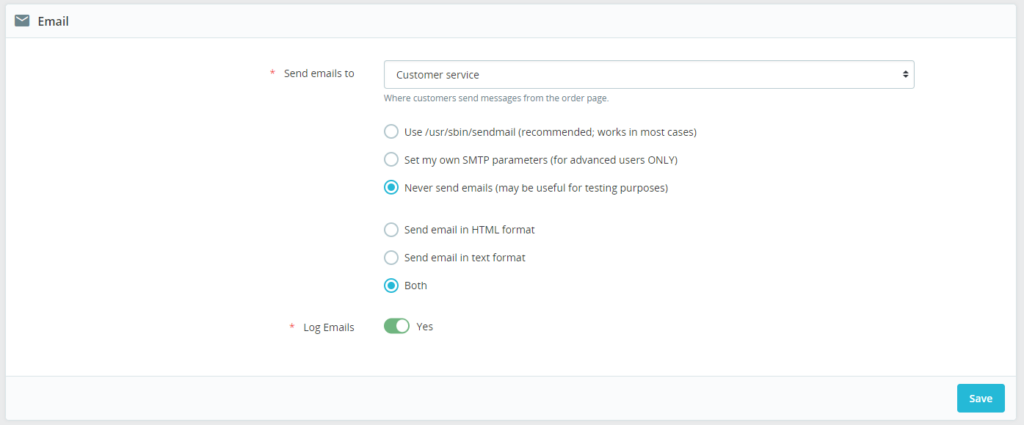
If the live store suddenly stopped mailing after a clone or migration, check Never send emails before anything else. Staging dumps often ship with that toggle on. One leftover setting explains many “nothing sends” tickets that never needed a new SMTP provider.
Read the PrestaShop email log
On the same E-mail page, PrestaShop keeps a log of messages it attempted to send. Open it when you need to separate “PrestaShop never tried” from “the provider rejected or delayed the message.” That single distinction removes most of the guesswork.
- No row after a test order → PrestaShop did not queue or send (method, module, or template issue).
- A row exists but the inbox is empty → look at spam, SMTP credentials, or the provider’s outbound filters.
- An error line in the log → fix that first (auth failed, connection refused, TLS/port mismatch).
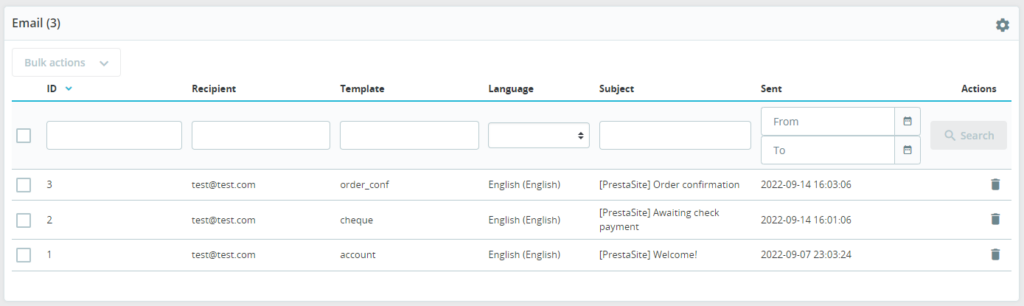
Server sendmail or SMTP provider logs sit outside PrestaShop. Use them only after the shop log shows a send attempt that still never arrives.
Checklist for common PrestaShop email problems
If you use sendmail
Blocked or missing sendmail is still a frequent cause of PrestaShop email problems on shared hosting:
- Confirm the host allows outbound mail. Many shared and some VPS plans block port 25 or disable sendmail entirely.
- Ask the host a concrete question: “Is PHP mail()/sendmail allowed for this account, or must we use SMTP?” Vague tickets get vague answers.
- If the host says “use SMTP,” switch the mail method and skip fighting sendmail.
If you use SMTP
- Match server, port, encryption (TLS/SSL), username, and password to the provider’s current docs – old “SSL on 465” notes go stale, and chatbots often recycle them.
- Complete any one-time app password or SMTP access step the provider requires (Google Workspace and Microsoft 365 change this often).
- Send a test (next section). Auth errors almost always mean wrong password, wrong username format (full email vs local part), or blocked app access – not a PrestaShop bug.
Before you overwrite SMTP credentials on a production shop, take a PrestaShop backup so you can roll back if a bad save locks you out of mail entirely.
If only some emails fail
Transport can be fine while one module still points at an old inbox or is disabled. New-order alerts usually come from the Mail Alerts module – not from the global E-mail screen alone. Confirm the module is installed, enabled, and lists the right addresses. Wrong “shop email” identity (From / Reply-To) is a different fix – cover that in the shop email guide linked above.
Test your email configuration
Still on Advanced Parameters → E-mail, use Test your email configuration. Send to an inbox you control (not only an internal alias). Read the response PrestaShop shows – connection and auth failures often name the exact setting to fix. Use that test to separate config errors from other PrestaShop email problems further down the stack.

After a green test, place a real test order in a private window and submit the contact form. Confirm both the customer copy and the merchant alert. A passing BO test with a failing order email usually means a module recipient or template issue, not SMTP – keep that distinction when you are tempted to “just change the host again.”
Spam, domain authentication, and hosting limits
If the log shows success but Gmail or Outlook still hides the message, check spam and promotions. Spam folders hide many PrestaShop email problems that look like “SMTP is broken” from the merchant’s chair. Long-term, authenticate the sending domain (SPF, and DKIM when your SMTP provider supports it) so providers trust mail from your domain. Shared hosts that throttle or block outbound mail force you onto SMTP regardless of how clean the PrestaShop settings look.
Work the list in order: name the layer → Never send → mail method → log → SMTP or sendmail checks → module recipients → test → spam/DNS. That sequence clears most PrestaShop email problems without guessing – and without rewriting SMTP settings for a Mail Alerts typo.