
A PrestaShop export CSV download is how most merchants pull products, customers, or orders out of the Back Office for spreadsheets, accounting, or a quick backup of a filtered list. Unlike import, there is no single Advanced Parameters screen that dumps the whole shop – each list has its own export control.
Need to load a file into the catalog instead? That uses Advanced Parameters → Import. See the full PrestaShop CSV import guide for file prep, column mapping, and common import errors. This article covers export only.
Export vs import (and vs a real backup)
- Export – download what you see (or can filter) on a Back Office list, usually as CSV.
- Import – upload a prepared file through the Import wizard to create or update data.
- Backup – database + files so you can restore the shop. A CSV of products is not a restore plan. Use a proper PrestaShop backup before risky changes.
Also: a list export is often not shaped exactly like an import sample. If you plan to edit and re-import, expect to remap columns (and check separators/encoding) on the import screen.
How to run a PrestaShop export CSV from a list
- Open the list for that entity (for example Catalog → Products, or Customers → Customers).
- Optional but recommended: use search and filters so the grid only shows the rows you need (one brand, one category, inactive products, and so on).
- Click the gear / settings icon at the top right of the grid.
- Choose Export to download a CSV of the current view.
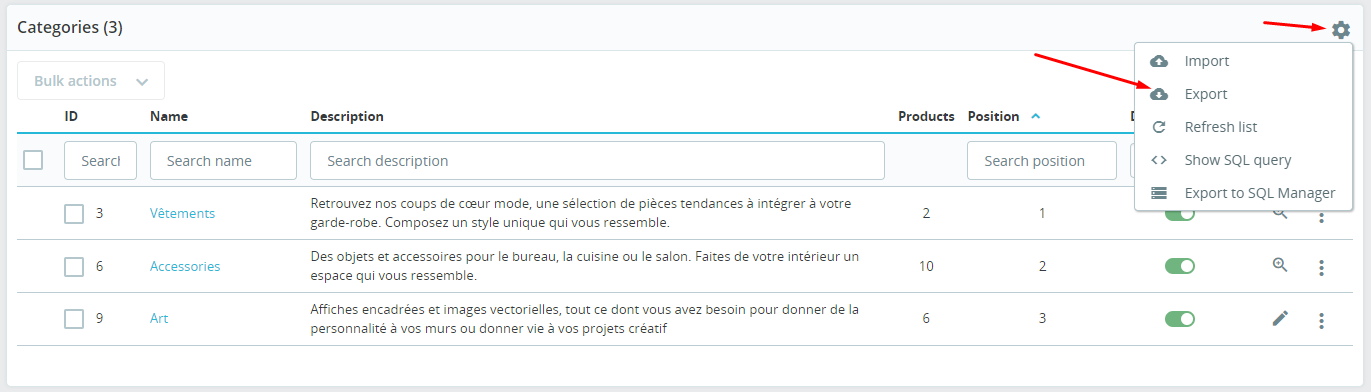
Repeat the same pattern on other grids that offer Export (orders, categories, and similar, depending on your version and modules). If the gear menu has no Export entry, that screen simply does not ship a native CSV download – use SQL Manager (below) or a module.
What a PrestaShop export CSV is good for
- Price or stock reviews in Excel / Google Sheets
- Handing a filtered product set to a colleague or agency
- A starting file before a careful re-import (after remapping)
- Quick checks after a migration or bulk edit
Customer and address exports contain personal data. Store them securely, limit who receives the file, and follow GDPR rules if the data leaves the shop environment.
Filters, multistore, and “missing” rows
Export usually follows the current list context:
- Active filters and search reduce the file – clear them if you expected the full catalog.
- In multistore, switch to the correct shop (or all shops) before exporting. Exporting from the wrong context is a common reason products or prices look “incomplete.”
- Pagination does not normally limit modern list exports the way old screens did, but if a file looks truncated, clear filters and try again from the shop context you care about.
Custom columns: SQL Manager
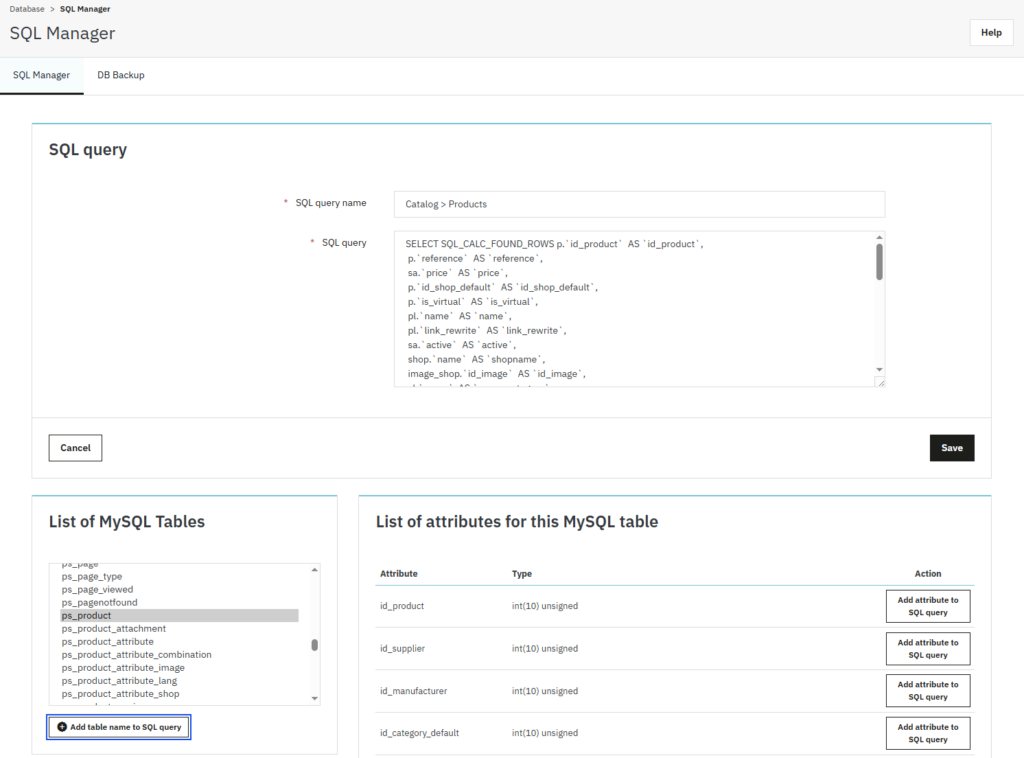
When the built-in Export columns are not enough (custom joins, only certain fields, a one-off report), use Advanced Parameters → Database → SQL Manager. Save a SELECT query, run it, and download the result. That is still an export workflow, but you control the columns – and a bad UPDATE/DELETE query can damage the database, so stick to SELECT unless you know exactly what you are doing.
If you only need connection or host settings for tools outside PrestaShop, that lives elsewhere – see database connection settings in PrestaShop.
After you download the file
- Open it in a spreadsheet and confirm separators (comma vs semicolon) before you share or re-import.
- Save a UTF-8 copy if accents look wrong in your editor.
- For a round-trip into the catalog, follow PrestaShop CSV import: sample columns, mapping, and the “delete all before import” warning.
- For very large order or catalog extracts on a schedule, a dedicated export module may be cleaner than repeating manual list exports – learn the native path first so you know what “good” output looks like.
Native PrestaShop export CSV tools are simple on purpose: filter the list, hit Export, get a file. Use import when you need to write data back, and a full backup when you need a restore point – not a spreadsheet.