
Read a product description aloud and stop at the first trade term or acronym. Can a first-time buyer keep going without opening a new tab? If not, you need to decide how to explain terms inline on that page – or whether a glossary link is the better move. One sentence woven into the copy might be enough. Other terms need a maintained page with examples, comparisons, and related products. Same hesitation, different layers – and picking the wrong one still sends shoppers to Google.
Most stores swing between two bad defaults. They either repeat long definitions inside every product description (which bloats the page and goes stale when specs change), or they mention jargon with zero help and assume shoppers already speak the category language. A useful glossary strategy uses three layers: a quick inline decode, a short hover or auto-linked preview, and a full term page when the concept deserves depth.
Three ways to explain terms on a storefront
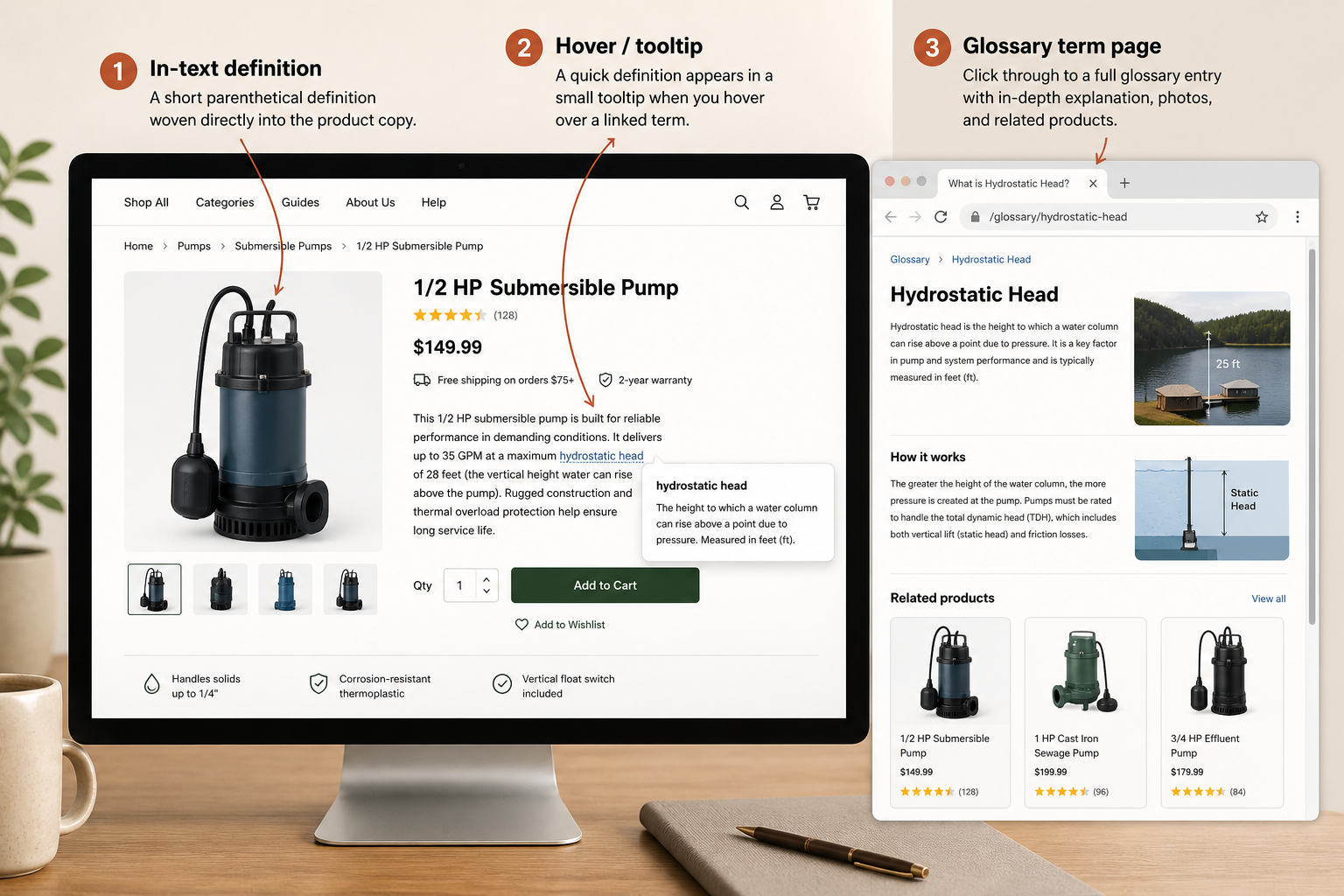
In-place explanation is a plain-language phrase or parenthetical inside the product copy itself. “Mercerized cotton (treated for a smoother, slightly shinier finish)” sits right where the shopper is reading. No click, no hover – just enough context to keep moving toward add-to-cart.
Tooltip or auto-linked preview keeps the visible sentence clean but surfaces a short definition on hover or tap. This works when the same term appears on dozens of SKUs and you want one canonical short description everywhere. The writing rules for those previews are different from inline copy – see our guide on tooltip microcopy for glossary terms for the length and tone constraints.
Full glossary term page is a dedicated URL with a short answer up top, examples, related products, related terms, and room for compliance notes. This is where search demand, comparisons, and visual proof belong. If you are unsure what belongs on that page, start with the anatomy of a useful ecommerce glossary term page before you publish stubs.
When to explain terms inline on the product page
Use an in-place explanation when the term blocks comprehension for this product and the answer fits in roughly one short sentence. The shopper should not need to leave the paragraph to understand whether the item matches their need.
Good inline candidates share a few traits. The term appears once or twice on the page, not on every variant line. The definition is stable across your catalog. The explanation directly affects a yes-or-no buying decision on the spot – fit, compatibility, material feel, care requirements, or a certification that gates the purchase.
Example – refurbished Grade B. Inline works: “Grade B (light cosmetic wear, fully tested, 90-day warranty).” The buyer needs that decode immediately to compare against Grade A without opening another tab.
Example – USB-C PD on a charger SKU. Inline works if you tie it to the device on the page: “USB-C Power Delivery (charges compatible laptops at up to 65W – see compatibility list below).” You are not teaching the entire USB spec; you are removing a blocker for this listing.
Stop inline explanations before they turn into mini blog posts. If you need a second paragraph, a comparison table, or three caveats, you have outgrown the product description. That is your signal to link to a glossary term page instead.
When to link to a full glossary term page
Link to a dedicated entry when the term has search demand, repeat value across many products, or depth that would clutter the PDP. Shoppers who Google the phrase should land on your store, not a forum thread. Product pages should point them there with a normal text link or an auto-linked mention – not by pasting the whole article inline.
Prioritize a glossary term page when:
- People search the term on its own (“what is hydrostatic head”, “non-comedogenic meaning”)
- You can show examples, photos, or before/after context that a tooltip cannot carry
- The term connects to multiple products or collections you want to cross-link
- Regulated or claim-sensitive categories need a reviewed, canonical wording you reuse everywhere
- Beginner and expert shoppers use different words for the same concept – the term page can capture both without awkward inline repetition
Example – hydrostatic head. A parenthetical on every jacket will not help shoppers compare 10K vs 20K vs 30K across your catalog. A term page with a simple chart, rain-use examples, and links to relevant shells scales. Product copy stays short: “20,000 mm hydrostatic head” linked once to your waterproof-rating glossary entry.
Example – niacinamide. Inline “vitamin B3 for tone and oil” might suffice on one serum. Across forty SKUs, auto-link to one glossary entry so percentages, pairing notes, and skin-type caveats live in a single maintained place. That pattern is exactly what Shopify internal linking with a glossary topic map is for: one authoritative definition, many contextual entry points.
A simple decision matrix: inline vs tooltip vs term page
Run unfamiliar terms through four questions before you write:
- Does this block the buyer on this screen? Yes → at minimum, inline or tooltip. No → plain mention may be enough.
- Will the same definition appear on many SKUs? Yes → centralize in a glossary; use tooltip or link, not repeated paragraphs in every description.
- Does the term earn organic search traffic? Yes → build a term page; do not hide the content only inside product tabs.
- Does the answer need images, comparisons, or legal review? Yes → term page; keep inline to a single-line pointer.
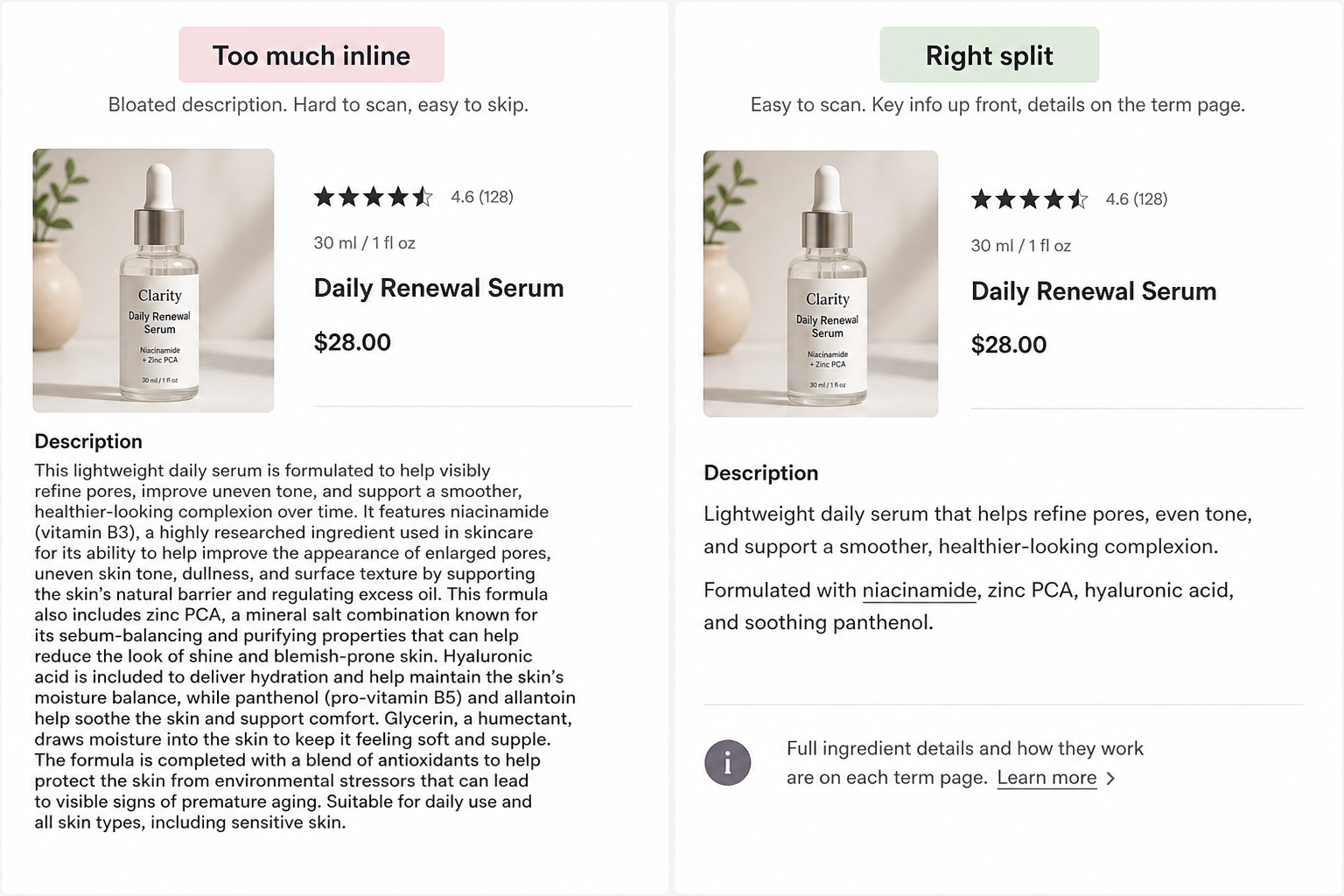
Most terms end up hybrid: one tight inline or tooltip line on the PDP, with a “learn more” path to the full entry. That split stops you from duplicating three paragraphs in four hundred descriptions while still helping the shopper who will never click.
Mistakes that waste time and hurt UX
Defining the same term five different ways. Inline copy on one product, a different tooltip on another, and a thin term page that contradicts both – that trains shoppers to ignore your help. Pick one canonical short sentence and one long-form page per term.
Linking without defining. Auto-linking every instance of “GSM” to a term page that only says “grams per square meter” adds clicks, not clarity. Fix the page or use a tooltip before you crank up link frequency.
Inline essays. Product descriptions are not the place for a full ingredient science lesson. If your inline explanation needs subheadings, it belongs on a glossary term page – the same discipline that prevents thin glossary content works in reverse here: do not dump thick content into thin spaces.
Ignoring mobile. Inline text is always visible. Tooltips must work on tap, not only hover. If your theme hides definitions behind desktop-only hovers, mobile shoppers still bounce to Google – which defeats the purpose of on-store explanations.
Auto-linking without turning product copy into a dictionary
Glossary apps can auto-link the first mention of a term in product descriptions, collection copy, and blog posts. Use that power selectively. Link the first occurrence in body copy, skip navigation and headings, and exclude terms that are already plain English on your audience’s reading level.
Google’s guidance on crawlable links and anchor text applies here: descriptive links help people and search engines understand relationships. A glossary link should read like a natural phrase (“single origin”, “IP67 rating”), not like a footnote marker on every other word.
Super Glossary for Shopify pairs a short preview with a full term page – so product copy stays lean, tooltips stay consistent, and deeper content still lives on an indexable URL. You write the term once; every auto-linked mention inherits the same inline help and the same destination when the shopper wants more.
Pick the lightest layer that solves the hesitation
Shoppers do not care whether a definition lived inline, in a tooltip, or on a glossary term page. They care whether they can trust the product in front of them without opening a new tab. Explain terms inline when one sentence removes doubt on that screen. Link to a full glossary entry when the concept has search value, visual proof, or reuse across the catalog. Get that split right and your product copy stays sharp while your glossary does the heavy lifting everywhere else.
Shopify App
Ready to turn your store's terminology into an SEO asset? Try Super Glossary for Shopify to automatically link technical terms and add helpful tooltips to your product pages today.