
How do you set up WooCommerce order views so warehouse, support, and accounting stop sharing one screen? You save a view per job on the orders list you already have.
WooCommerce lets each login hide columns under Screen Options. That is a personal preference, not a queue. And where the whole team shares one admin login – plenty of shops still do – one person’s hidden column is hidden for everyone. If the picker, the person on the phone, and the bookkeeper all click WooCommerce → Orders and get the same wall of rows, nobody has a job screen. They have a shared spreadsheet that happens to live in admin.
Why one orders list cannot serve three jobs
Warehouse needs orders that are ready to pack: SKUs and quantities on the row, ship-to grouped so they can batch a region. Refunds and failed payments are noise. A picker who opens 40 orders before lunch just to read what is in each box is not slow – the list is.
Support needs a name, a phone, what they bought, and the last note – while the customer is still on the line. “Let me pull that up” followed by scrolling silence is what happens when those fields live only inside the order. The caller can hear you hunting.
Accounting needs totals, coupons, and an invoice number for a date range. Product thumbnails do not help at month-end. If the list cannot show the invoice column, they export 900 rows and match them in a sheet to find the 12 refunds.
Same table. Three different questions. One set of columns cannot answer all three, and asking people to “just filter it” every time they sit down is how the filters never stick.
What WooCommerce order views actually are
A view is the orders table with the decisions already made: which columns show, which filters are on, which values are filled, how it sorts. You name that shape once and come back to it in one click. Nothing about the orders changes – only what the list puts in front of you. Loading a view is per user, so warehouse can sit on Fulfillment while support loads this week’s contacts. Nobody is fighting over one layout.
Core WooCommerce already documents the orders table: Screen Options for columns, status links, date and customer filters, column sorting. That is the orders overview. Useful – and still one person’s screen. It does not store “warehouse vs support vs accounting” as three places you can return to. For the click path to save and share a workspace, use the saved views for WooCommerce orders guide – that post is the mechanism. This one is which jobs get a screen.
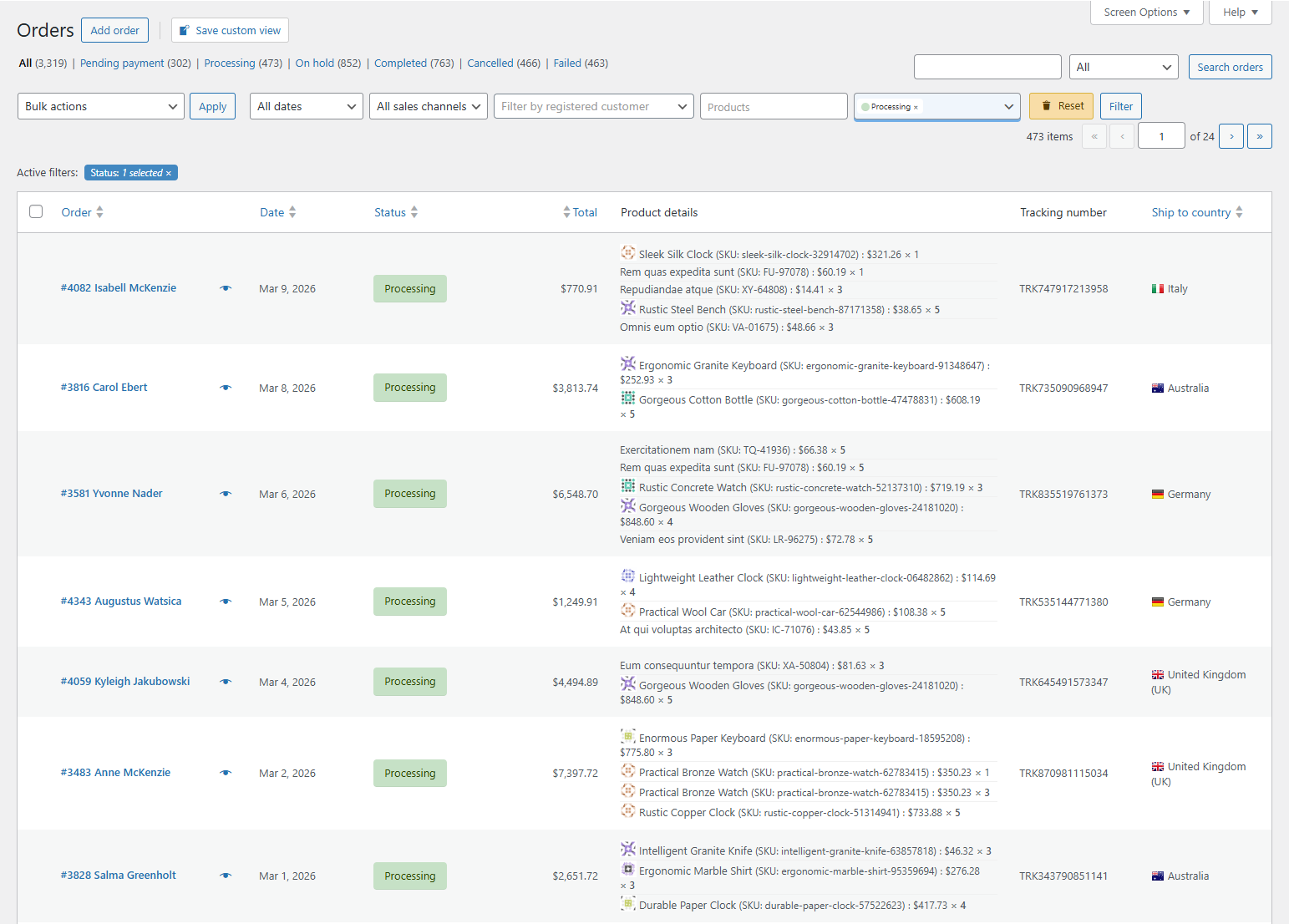
Warehouse: a fulfillment view
Who: pickers, the packing bench, whoever prints labels.
Filter: status Processing. If you use a custom “ready to ship” status, use that instead – the point is “allowed to leave the building,” not every paid order including holds.
Columns: order number, products (a preview you can hover – thumbnails, SKUs, quantities), tracking number, ship-to country, ship-to state or region.
Sort by ship-to region when you batch carriers or packing slips. Hide phone, email, coupons, customer role – those belong to other people. If a picker still has to open the order to see the SKU, the view is not done.
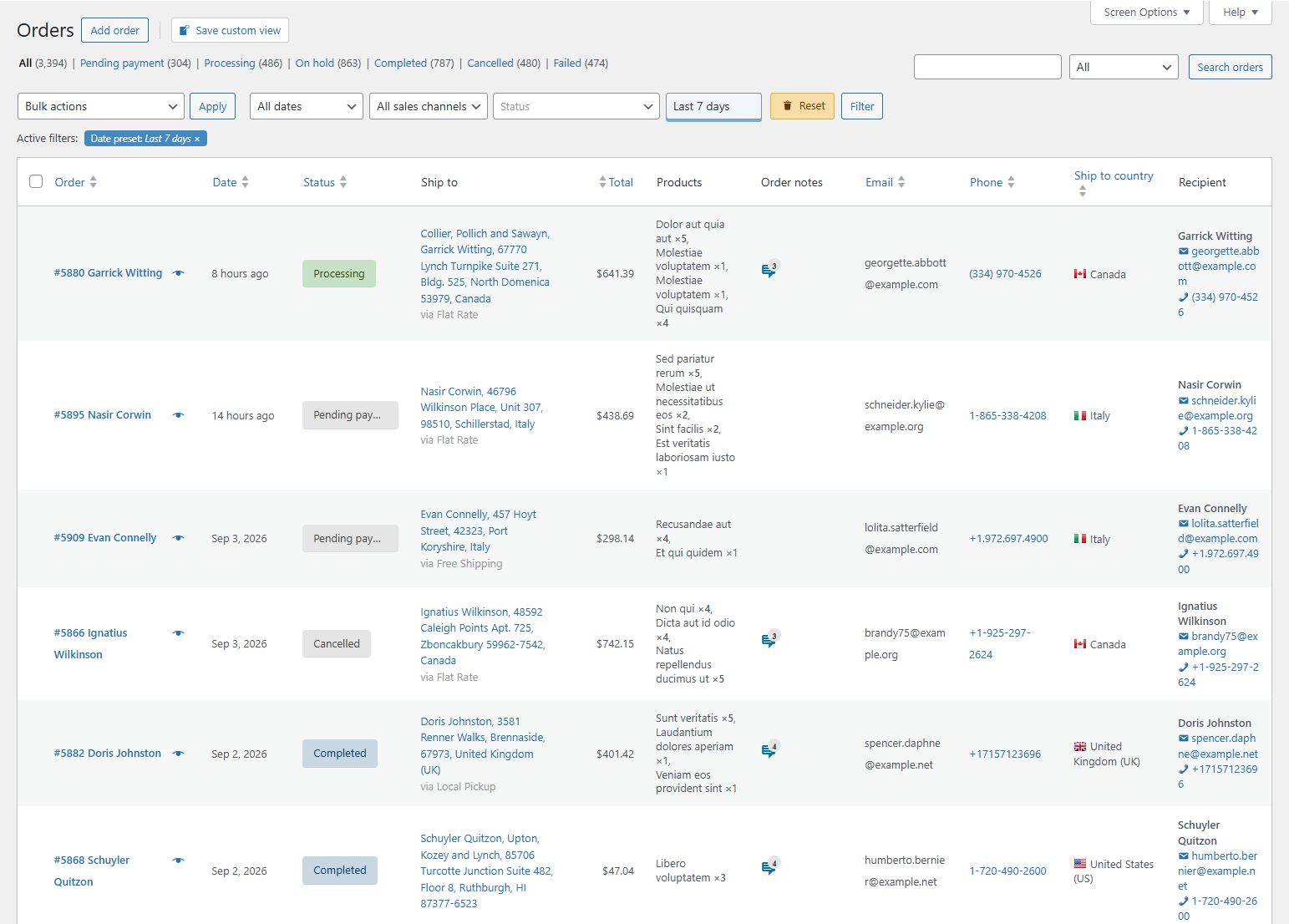
Support: contact details on the row
Who: whoever answers “where is it” and “I was charged twice.”
Filter: the last 7 days covers most shops. Add status Pending payment and Processing if those are the tickets you actually get. Do not dump Completed-from-2019 into this list.
Columns: order number, date, recipient, phone, email, products as text, status, order notes.
The notes column matters more than another status badge: a count and a hover beat opening the order while someone waits. Hide tracking and ship-to state unless support also runs the warehouse – two jobs on one view is how you end up back at the shared wall.
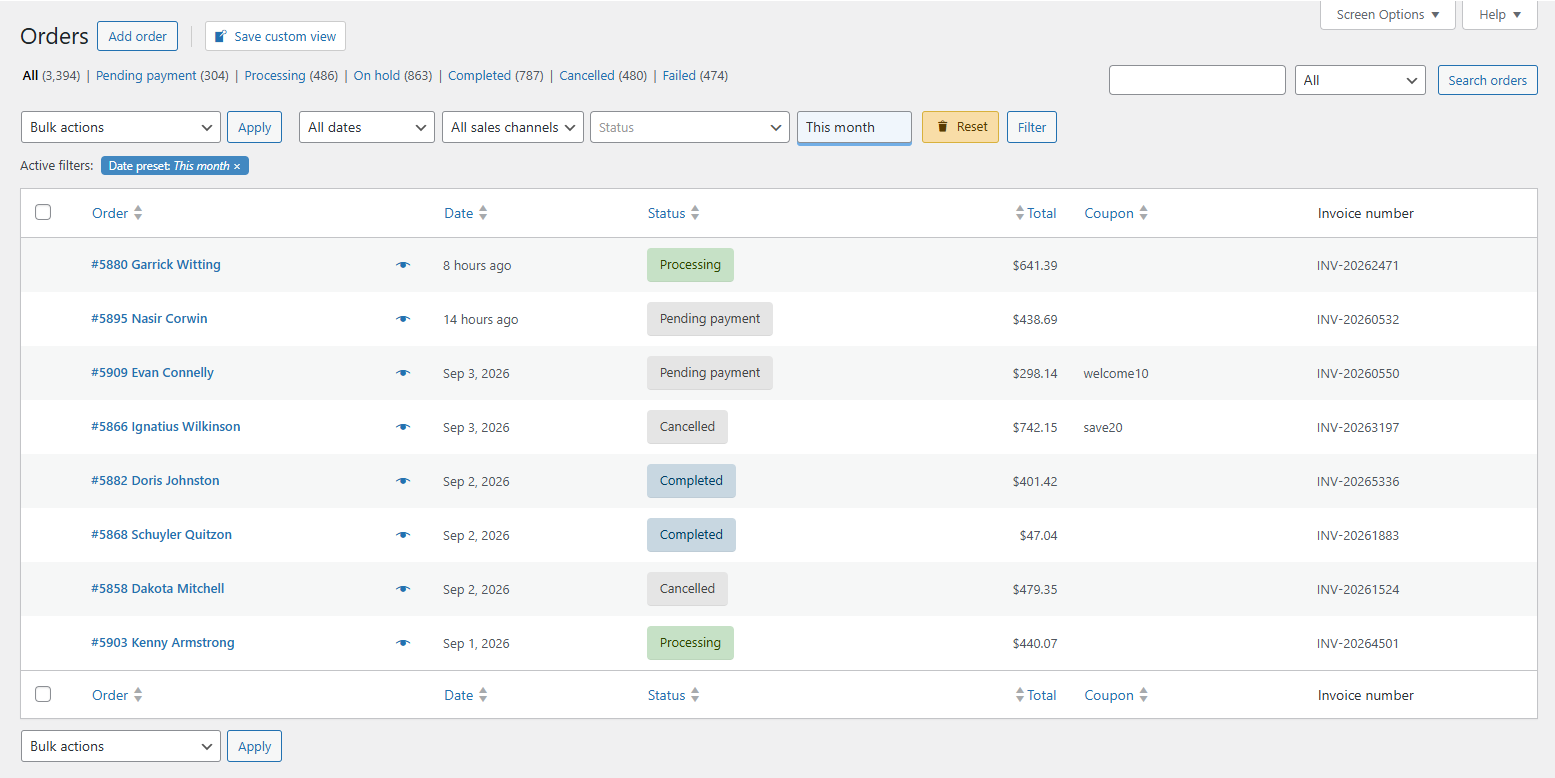
Accounting: totals, coupons, invoice numbers
Who: the bookkeeper, whoever reconciles the month.
Filter: this month, or a date range that matches the books. Status is optional; refunds belong in the range if the books include them.
Columns: order number, date, total, coupon, invoice number, customer type (guest vs account), status. No product gallery. No phone.
WooCommerce does not invent invoice numbers by itself. If you run a PDF invoices plugin, put that number on the row so a search in the books lands on the order. The coupon column is how you answer “why is this month down” without exporting the world: when revenue drops 8% and three codes ate the margin, you want that visible on the list, not in a pivot someone builds once a quarter.
How to set up WooCommerce order views
Four moves, once per job:
- On WooCommerce → Orders, turn on the columns that job needs in Screen Options. Turn the rest off.
- Set the filters for that job and wait until the table looks like work, not like a dump.
- Save it as a named view – a color helps when three badges sit in a row.
- Pin the two you open every morning. Pinned views can show a live count, and a morning that starts with (47) fulfillment and (3) problems is already a plan.
Screen Options forgets the moment you click into an order and come back; saved WooCommerce order views do not. That is the job OrderFusion is for: columns, filters, and a view you return to without rebuilding the row. The click-by-click lives in the saved-views post – no second tutorial here.
Start with two of those three
Do not build a dashboard of seven on day one. Warehouse plus support covers most shops; add accounting when month-end still means a CSV. Two WooCommerce order views used every morning beat seven built for a screenshot. Extra queues you may already have written down: orders missing tracking numbers, and a high-value / VIP queue. Those are their own posts – point people there instead of pasting the recipes again.
Two more you can add later without a new article: holds, failed, and refunded as a “problem” list (status history on the row helps), and first-time buyers this week if someone actually writes them. If nobody writes them, skip the view. A badge nobody opens is clutter.
Build two. Use them for a week. If someone still opens the unfiltered list “just to look,” the view is missing a column they need – add that column, not a fourth view.
WooCommerce Plugin
Want to filter orders, add custom columns, and export CSV from your WooCommerce admin? Try OrderFusion — free Lite on WordPress.org, Pro on WooCommerce.com.
Install OrderFusion Lite (free) · View OrderFusion Pro on WooCommerce.com