
This guide to Vacation Mode display locations covers top banners, popups, product pages, checkout hooks, and styling options in PrestaShop.
The Vacation mode module displays holiday and vacation notices through PrestaShop theme hooks. This guide explains each display placement available in the module configuration, the styling options for each, and how to troubleshoot visibility issues.
Note: This guide covers the eight storefront display placements. Order email notifications are configured on the same form but are documented in the Managing Vacation Profiles guide. Disable-add-to-cart options are documented in Managing Vacation Profiles.
Vacation Mode display locations overview
Understanding Display Placements
This Vacation Mode display locations maps each checkbox in the module to a theme hook.
In the module configuration, each vacation profile has a section titled Select the places where you would like to display the information:. Each checkbox corresponds to a display placement. When you enable a placement, a rich-text editor appears where you enter the message customers will see.
Behind the scenes, each placement connects to one or more PrestaShop hooks – insertion points defined by your theme. The module registers on the primary hook for each placement and can optionally use an alternative hook if your theme does not support the default position. See the PrestaShop hooks documentation for how hooks work in themes.
Complete List of Display Placements
The table in this Vacation Mode display locations lists every storefront placement.
| Placement | Primary hook | Alternative positions | Available options |
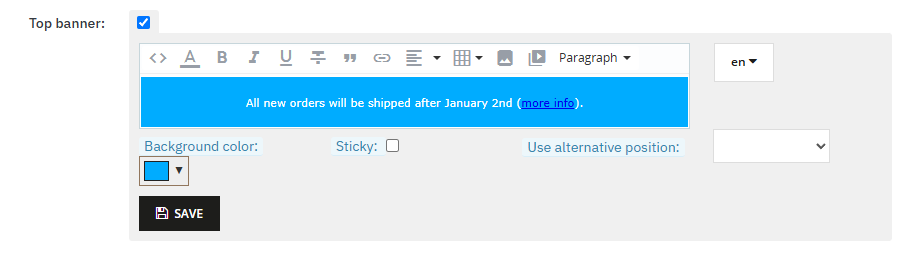
| Top banner: | displayBanner | Position #1 (displayAfterBodyOpeningTag) | Background color, Sticky (No / Top / Bottom), Constrain block width, Block margins |
| Popup: | displayFooter | Position #1 (displayBeforeBodyClosingTag) | — |
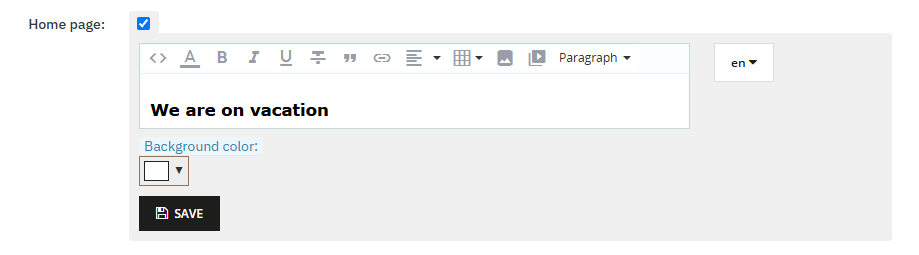
| Home page: | displayHome | — | Background color, Constrain block width, Block margins |
| Left column: | displayLeftColumn | Right column (displayRightColumn) | Background color, Block margins |
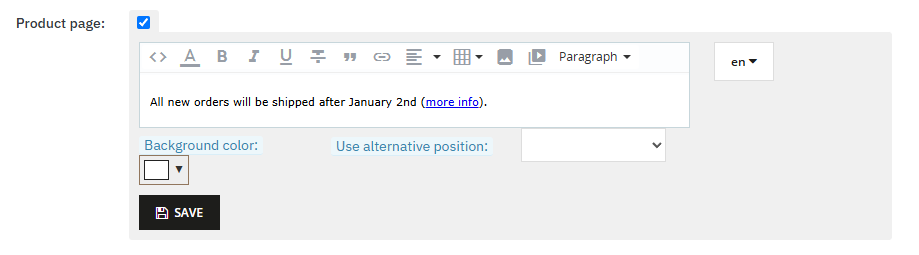
| Product page: | displayProductAdditionalInfo | Product footer, Product buttons, Extra left, Extra right, Delivery info | Background color, Block margins |
| Cart page: | displayShoppingCart | Cart footer (displayShoppingCartFooter) | Background color, Block margins |
| Checkout page: | displayCheckoutSummaryTop | Custom checkout hook (displayCheckout) | Background color, Block margins |
| Reassurance info: | displayReassurance | — | Background color, Block margins |
On default PrestaShop themes (Classic, Hummingbird), Checkout page works with the primary hook – no alternative position is required. Use Custom checkout hook only if your theme defines displayCheckout in a different location.
Important: Reassurance info: may appear in different places depending on your theme. In many default themes, it is displayed on the product page, in the shopping cart, and during checkout.
Configuring a Display Placement
Each step below applies one placement from this Vacation Mode display locations.
To enable a placement on a vacation profile:
- Open Modules → Module Manager → Vacation mode → Configure.
- Select the vacation tab you want to edit.
- Check the box next to the desired placement (for example, Top banner:).
- Enter your message in the rich-text editor. Use the language dropdown to enter text for each shop language.
- Adjust styling options if needed (see below).
- Click Save on that placement block.
Repeat for each placement you want to use. You can enable multiple placements on the same vacation profile with different messages.
Use Alternative Position
The Vacation Mode display locations alternative hooks help when your theme omits a default position.
Some placements offer a Use alternative position: dropdown with additional hook options. Select an alternative when:
- The primary hook is not available in your theme
- The notice appears in an unexpected location with the default hook
- You want finer control over placement (for example, Right column instead of Left column:)
Note: Some positions may not be available – it depends on your theme.
When an alternative position is selected, the module renders the message on that hook instead of the primary one.
Styling Options
Styling options in this Vacation Mode display locations vary by placement.
Styling options appear below the text editor when a placement supports them. Not all placements offer every option.
Background color:
Set a background color for the notice block using the color picker. Supports RGBA values for semi-transparent backgrounds. The color is applied to the message container on the storefront.
Sticky:
Available on Top banner: only. Choose No, Top, or Bottom. When set to Top or Bottom, the banner stays fixed while the customer scrolls and the module adds body padding so content is not hidden behind the banner.
Constrain block width:
Available on Top banner: and Home page:. When enabled, the notice content is wrapped in a standard .container element so it matches the main content width of your theme. Enable this if the block appears wider than your page content – for example, in a full-width page section.
Block margins (px):
Set margins around the notice block in pixels using the Top, Right, Left, and Bottom fields. Leave a field empty for no margin on that side. Values are combined into a CSS margin on the storefront.
Popup Behavior
Popup behavior in this Vacation Mode display locations applies on every page where the hook fires.
The Popup: placement displays your message as a modal overlay when the page loads.
- The popup opens automatically on pages where the hook fires.
- A Don't show again button lets customers dismiss the popup.
- When dismissed, the popup is hidden for seven days in that customer's browser (stored in browser local storage). After seven days, it appears again on the next visit.
- Each vacation profile's popup is tracked separately by vacation ID.
To use an alternative popup position, select Position #1 (displayBeforeBodyClosingTag) in Use alternative position:.
Adjusting Hook Position with Design → Positions
This Vacation Mode display locations section explains hook ordering in the Back Office.
When you activate vacation mode, the notice may appear below other module content on a page. This is default PrestaShop behavior – newly installed modules are placed at the bottom of hook output.
To move a notice higher on the page:
- Go to Design → Positions in the PrestaShop back office.
- In the module filter at the top, select Vacation mode.
- Find the hook where your notice appears (for example,
displayHomefor the home page). - Drag the Vacation mode row to the top of that hook's module list.
- Save. The module content will now render first among modules on that hook.
Multiple Active Vacations on the Same Placement
If multiple vacation profiles are active and both have the same placement enabled, all matching messages are displayed for that hook. Each message renders as a separate block on the storefront.
In the Back Office, the active-vacation indicator badge is generic and does not identify which profile is active. On the module configuration page, a warning banner lists active vacations with dates when set (Vacation mode active: YYYY-MM-DD — YYYY-MM-DD or Vacation mode active.).
Troubleshooting Display Issues
This Vacation Mode display locations troubleshooting section covers the most common visibility problems.
The notice does not appear on the storefront
Check the following in order:
- Activate: is set to Yes on the vacation tab.
- Dates: if set, the current date falls within the range. Future vacations are not yet active.
- The placement checkbox is enabled and you clicked Save.
- Message text is entered for the customer's language (not just the default language).
- Your theme supports the selected hook. Try Use alternative position: if available.
- The module is not at the bottom of a hook where it is hidden by other content – check Design → Positions.
The notice appears but in the wrong place on the page
Use Design → Positions to reorder the module on the hook, or switch to an Use alternative position: option if the theme renders the primary hook in an unexpected location.
The popup keeps reappearing
The Don't show again button suppresses the popup for seven days per browser. Clearing browser data, using a different browser, or visiting in private/incognito mode will show the popup again. This is per-customer browser behavior, not a module setting.
Partial translation warning in the Back Office
If you see a warning like "%s missing text for %s language.", an enabled placement has text in some languages but not all active shop languages. Fill in the missing language or disable the placement.
Changes not visible immediately after saving
Front-office output is cached with a key based on the next vacation start or end boundary for the current shop. Saving a placement or changing vacation settings clears the module cache, so changes should appear promptly after Save. If you still see old content, clear your PrestaShop cache from Advanced Parameters → Performance.
Related Guides
- Learn how to manage vacation profiles, scheduling, and order emails in the Managing Vacation Profiles guide.
- Return to the Main Documentation.


