
This Columns Reference for Better Order Filter explains how to customize the PrestaShop order grid with additional data columns.
The Better Order Filter module allows you to completely customize which data points appear in your PrestaShop order grid. By combining filters with specific columns, you can create highly specialized views that display exactly the operational data your team needs – without clicking into individual orders.
The configurable column list is accessible by clicking Edit filters in the Order filter block. It appears below the Active and Inactive filter sections under Order list columns. (Note: Fixed grid columns, such as the Actions column, are not included in this list).
Columns Reference overview
Managing Your PrestaShop Order Grid Columns
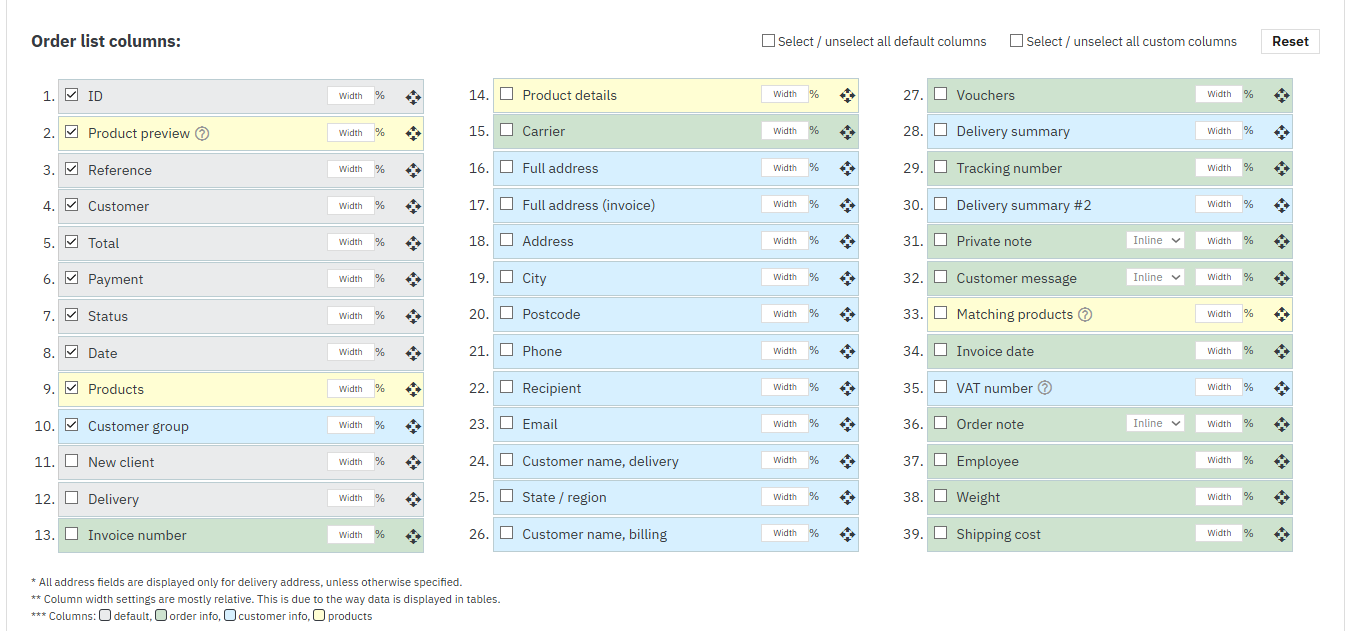
Customizing your column layout is straightforward and visual:
- Show/Hide Columns: Select a column’s checkbox to display it in the order list. Clear the checkbox to hide it.
- Reorder Columns: Drag any movable row by its handle to change the column order. You can reorder columns even if they are currently hidden.
- Adjust Widths: Enter a percentage in a Width field to influence that column’s width (available on modern Symfony order lists). Widths are mostly relative, as table content also affects the final layout.
- Display Modes: Choose between Inline or Popup display modes for the Private note, Order note, and Customer message columns to keep your grid tidy (available on modern Symfony order lists).
- Bulk Actions: Use the Select / unselect all default columns (which can include manually configured custom columns) or Select / unselect all custom columns checkboxes located above the list on the right for quick bulk management.
- Reset Layout: Use the Reset button to restore default ordering, enable default rows, disable non-default rows, and clear custom widths. (Note: This does not reset Inline/Popup selections).
Click Finish edit to return to the normal view. Your column preferences (checkboxes, order, width, display mode) are saved automatically to your employee profile and will refresh the order list immediately. This clears the visible filter-set selection in the current page, but it does not overwrite the named set.
Column Groups (Color Coding)
In Edit View, the column list uses background colors to help you quickly identify data families:
- Gray: Default PrestaShop columns.
- Green: Order information.
- Blue: Customer information.
- Yellow: Product data.
Default PrestaShop Columns
These columns represent the standard data points selected by default when the module builds its order list.
| Column | Description |
|---|---|
| ID | The unique Order ID. |
| Reference | The Order reference code. |
| New client | Indicates whether the order belongs to a first-time customer. |
| Delivery | Delivery country (modern PrestaShop) or legacy country column (older versions). |
| Customer | The customer’s full name. |
| Total | The total order value, including tax. |
| Payment | The payment method used. |
| Status | The current order status. |
| Date | The date the order was created. |
| Shop | The shop name (only active when PrestaShop multishop is enabled). |
| Legacy order-list PDF column. | |
| Company | The company name (only active when B2B mode is enabled). |
Better Order Filter Custom Columns
The module introduces a wide variety of new, highly requested columns that are not available in the default PrestaShop grid.
| Column | Description |
|---|---|
| Products | A list of ordered product names with their respective quantities. |
| Product details | Configurable details including image, name, reference, price, and quantity. |
| Matching products | Highlights specific products that matched your active Product or Category filter. |
| Product preview | A compact, tooltip-style product preview. |
| Full address | A complete summary of the delivery address. |
| Full address (invoice) | A complete summary of the invoice address. |
| Address | Address line 1. |
| City | City. |
| Postcode | Postal code. |
| Phone | Phone and mobile phone data. |
| Customer email address. | |
| Recipient | Delivery recipient name, customer ID, email, and phone data. |
| Customer name, delivery | Delivery customer identity data. |
| Customer name, billing | Billing customer identity data. |
| State / region | State or region. |
| Customer group | Customer group. |
| VAT number | VAT number. |
| Delivery summary | Delivery address and related delivery data. |
| Delivery summary #2 | Carrier, shipping cost, company, address, location, country, and phone data. |
| Invoice number | Invoice number. |
| Invoice date | Invoice date. |
| Carrier | Carrier. |
| Tracking number | Shipment tracking number. On modern versions, it links directly to the carrier’s URL. |
| Vouchers | The voucher/cart rule code or name used on the order. |
| Private note | Customer private note. |
| Order note | Internal order note. |
| Customer message | Messages left by the customer during checkout. |
| Employee | Distinct employees found in the order’s history. |
| Weight | Total calculated order weight. |
| Shipping cost | Shipping fees paid. |
Conditional & Version-Specific Columns
Some columns only appear when specific PrestaShop features, versions, or third-party modules are active:
- Order note: Requires PrestaShop 1.7.8 or newer.
- Marketplace Order ID: Appears only if the shoppingfeed or bricobravoconnector modules are enabled.
- Product MPN: Appears in product detail/preview settings only on PrestaShop 1.7.7 and newer.
- Shop: Configurable on Symfony order lists; disabled in the legacy edit list.
Product Detail & Preview Columns
The Product details and Product preview columns are highly customizable. You can configure exactly which data points to show within them via the module’s settings.
Available fields for Product details: Product image, Product name, Reference, Supplier reference, EAN-13, UPC, MPN (PS 1.7.7+), Price, and Quantity.
Available fields for Product preview: Column titles, Product image, Product name, Reference, Supplier reference, EAN-13, UPC, MPN (PS 1.7.7+), Quantity, Current stock, and Price.
Adding Manual Custom Columns
If you have added custom fields to your database via manual SQL changes or other third-party modules, you can display them using the Advanced settings.
Enter one custom column per line using this format:
column_system_name|Column label
Note: The column_system_name must exactly match the column key available in the order query. The module can also disable automatic custom-column detection through its settings. If a custom column appears but stays blank, first check that the field exists in the order-list query row. Delivery-address properties can also fill matching missing fields. Only a narrow subset of decimal order-object properties is copied as a fallback; ordinary string and integer order properties are not generally populated this way.
Version-Specific Behavior & Constraints
- Product MPN appears in product detail and preview settings only on PrestaShop 1.7.7 and newer.
- PDF is a legacy order-list column and is not added on the Symfony order list.
- Some module columns are display-only or have sorting/search disabled because their values are calculated from related order data.
Related Guides
- Learn how to filter this data in the PrestaShop Order Filters Reference Guide.
- Save your column layouts using PrestaShop Order Filter Sets.
- Extract your custom grid data using the CSV Export Guide.
- Configure deeper module behavior in the Advanced Settings Guide.
- Return to the Main Documentation.


