
“No matches were found for your search” is what the Classic theme prints on a PrestaShop empty search. That page still has to offer a next product or a next query.
Most PrestaShop themes leave the same kind of empty search: a short “nothing found” message, maybe a search box, and no product to click. One bold line, a “please try other keywords” sentence, the search field with the query still in it – and nothing to buy.
Newer themes leave a different hole. The heading already names the query, the header keeps the field, and the content is still a dead end:
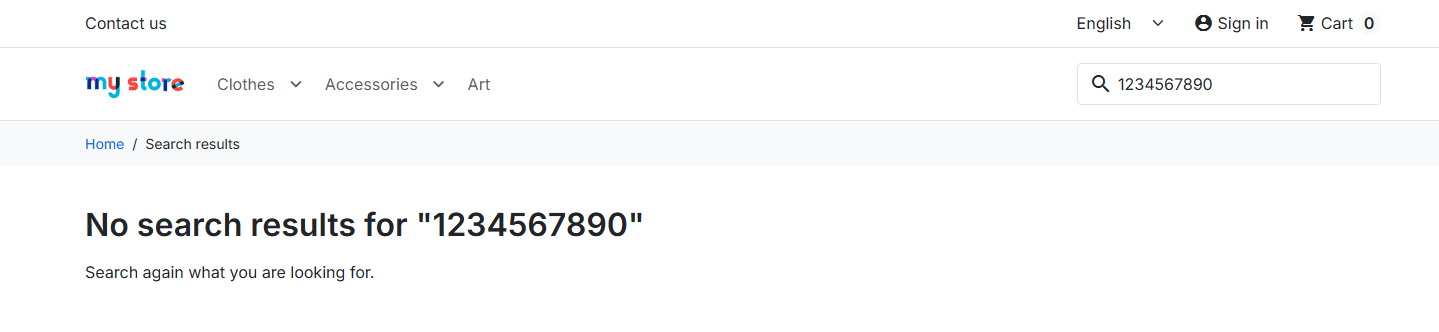
What the Classic theme shows when search finds nothing
The page title says “Search results.” Under it the Classic theme prints the bold heading “No matches were found for your search,” then one line of advice: “Please try other keywords to describe what you are looking for.” That is the whole empty state.
One useful thing is already there: the search box still holds what the visitor typed, so they can edit and retry without starting over. What the page lacks is anything to buy. No product, no category to try next, no suggested query. On many shops the next thing they hit is the footer.
What the empty search page still has to do
A zero-hit page still has a job: offer a next product or a next query. Nielsen Norman Group’s guidance on search no-results pages is the same job in one line: restate the query, keep a search box with the original text, and offer a way forward that actually returns results. That last clause is easy to skim past. It is the whole recovery:
Show the words they typed
The visitor needs to see the query on the page, not only inside the input. If the heading only says “no matches,” they cannot tell whether the shop understood them. Print the string next to the miss so a typo is obvious and an honest miss is honest.
Keep the search box, with that query still in it
A retry should cost one edit, not a trip back to the header. The Classic theme already does this: the field stays on the empty page and still holds what they typed. Leave it. Do not replace it with a homepage search that wipes the string.
Give a category that has products
A click that opens a listing with stock is a way forward. Baymard’s no-results research puts related or popular categories on that page for this reason: the shopper can browse what you actually sell instead of guessing a better keyword. Popular categories are the simple version when the query does not map to a department. Related categories are stronger when you can match a word in the query to a real listing.
Show products that will load, and label them
In-stock bestsellers or most-viewed items are the last-resort click: something to buy when the query has nowhere to go. Label the grid as popular or suggested. Do not dress it as search hits for a query that missed – that trains people to stop trusting search.
“Please try other keywords” is a spelling lecture. Baymard’s tests found that search tips alone rarely get used, and they can become a reason to leave. A recovered empty search carries the next click for them.
Aliases belong in Search settings
Some empty searches are fixable upstream. If shoppers type “hoody” and your catalog says “hoodie,” that is an alias, and aliases live in Shop Parameters → Search, next to the index rebuild. We covered that whole screen in the quick guide to configuring PrestaShop search, and this post does not repeat it.
Aliases shrink the count of zero-hit pages. They never bring it to zero. Some queries honestly have no match in your catalog – a brand you dropped, a product line you never carried, a typo nobody has aliased yet. For those, the empty page itself has to do the recovering.
A small free module for the PrestaShop empty search page
The fix is a small free module called Empty Search Recover. It fills the empty-results area the theme already has, so you do not edit the theme files. On the Classic theme that is enough. Most other themes expose the same kind of empty-results spot, so the module can land there too. It only runs when search found nothing – a search with hits stays untouched.
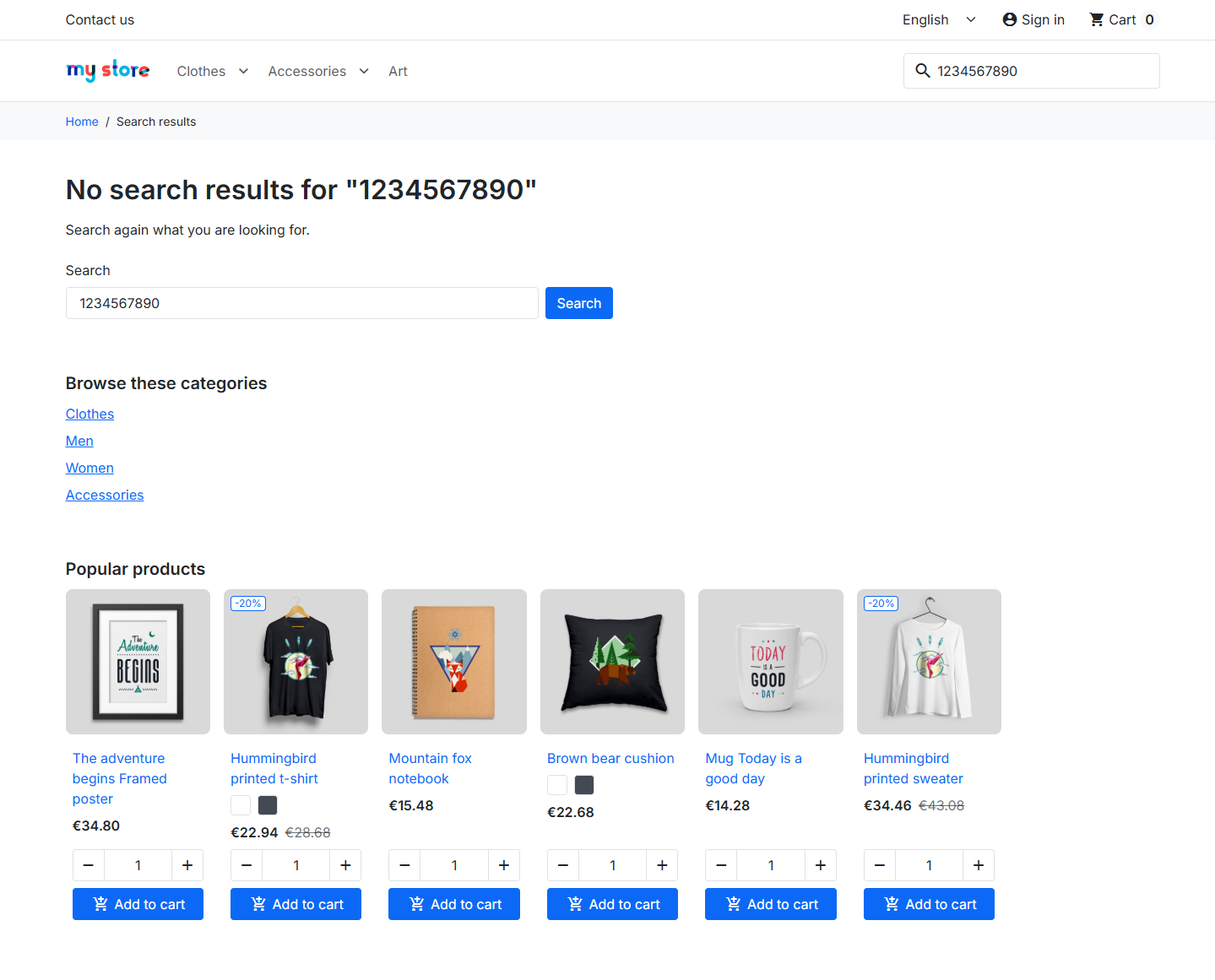
Each recovery piece is a checkbox, because themes leave different holes. The Classic theme keeps a search field in the content and never prints the typed words in the heading. Some newer themes print a large “No search results for …” line and leave only the header field to retry. Turn on what your empty page is missing:
- A search form in the content block, with the query still in it.
- The typed query in a heading, in the shape No search results for “…”.
- Categories you pick from a tree in the back office – links that open a listing with products, not Home.
- A small grid of in-stock bestsellers. The heading says they are popular or suggested, not search hits.
What it refuses in the first version: it does not add aliases or a second search engine – that stays in Search settings. It does not hide the theme’s “no matches” line. And no paid upsell – the module is free, and the first version stays that way.
Check your own shop search
This takes two minutes. Open your shop search, type a query that misses on purpose, and read the page it prints. Look for the query on the page, a field in the content that lets you retry, a category that has products, and at least one in-stock item you can click without pretending it matched. On the Classic theme you will find the field and miss the typed words in the heading. On some newer themes you will find the heading and miss the content field.
The empty search page belongs to a family you may already know: the out of stock page and the discontinued product page are empty catalog states with the same duty – different URLs, same job of giving the visit a next step.
Keep the query, keep the field, and put a category or a buyable product on the page. Do that, and a search that finds nothing still finds the shopper a way forward.