
Your biggest woocommerce high value orders deserve the most attention in your order management workflow – and often get the least.
Not on purpose. When every order looks the same in a flat list sorted by date, a $2,000 wholesale purchase sits right next to a $12 sticker order. Your team treats them the same: process top to bottom, first in first out. The wholesale buyer waits behind 40 small orders. Their shipment goes out late. They don’t reorder.
This post shows you how to surface woocommerce high value orders instantly using OrderFusion’s filters, then save that setup as a one-click “VIP Queue” view your whole team can use.
What counts as a woocommerce high value order (and why you should define it)
Every store has a different threshold. For some, it’s $200. For others, $1,000. The number matters less than having one at all.
Without a defined cutoff, your team makes judgment calls on every order. With one, you can build a filter that pulls those orders to the front automatically.
Think about your average order value. Your VIP threshold should sit well above it. If your AOV is $65, orders above $250 probably deserve priority handling. If your AOV is $400, maybe $1,000 is your line.
Pick a number. You can always adjust it later.
Filter woocommerce high value orders by order total
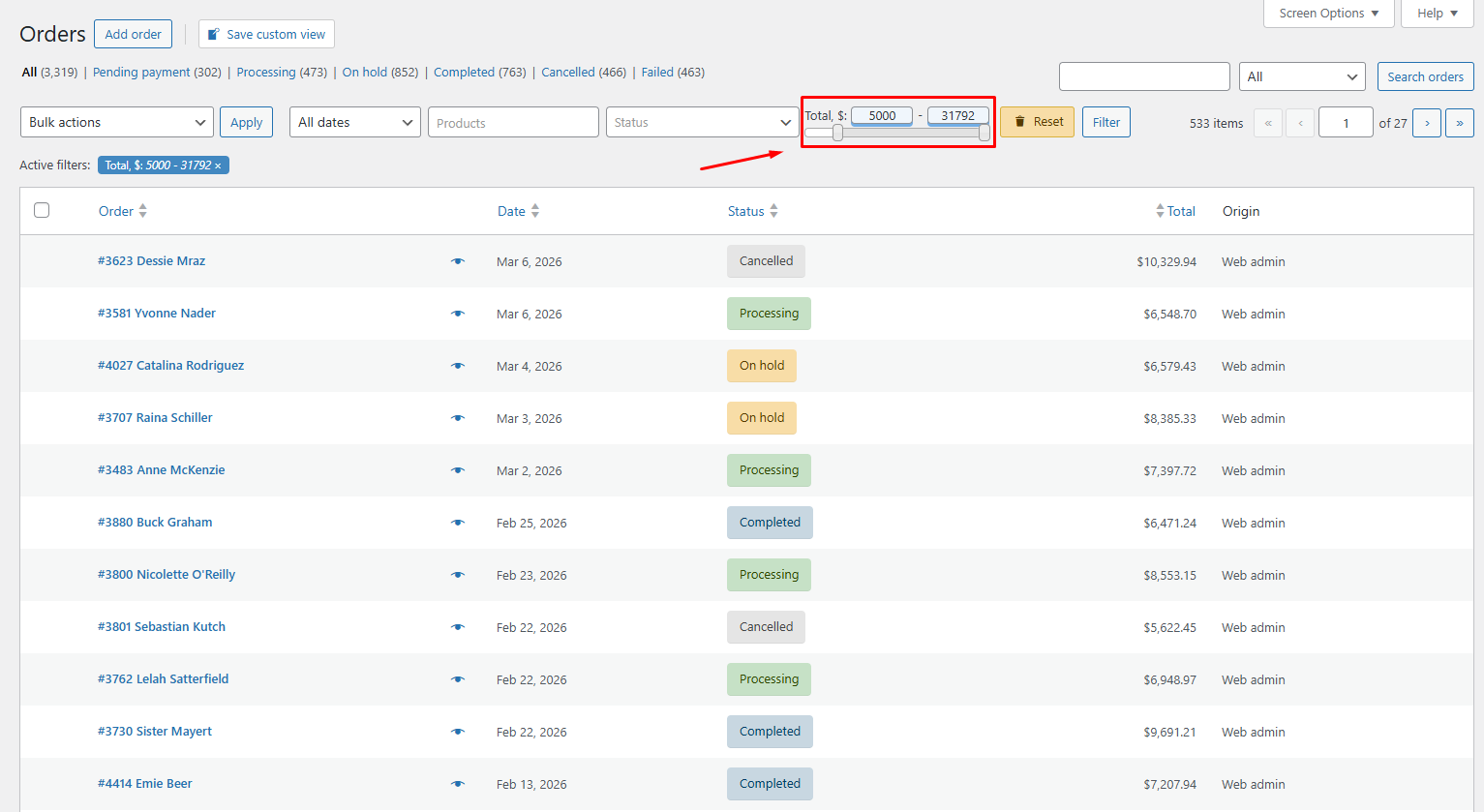
OrderFusion’s Order Total filter uses a number range with minimum and maximum fields. Set both, or leave one empty for an open-ended range.
To find high-value orders:
- Open Screen Options at the top of your Orders page
- Check the box for Order Total in the Filters section
- Close Screen Options
- In the Order Total filter, enter your minimum (for example, 500)
- Leave the maximum empty
The list updates immediately. You now see only woocommerce high value orders at or above $500.
Want a specific band instead? Enter both values. Set minimum to $500 and maximum to $2,000 to focus on your mid-to-high range while excluding bulk wholesale orders that have their own workflow.
Add shipping method for priority routing
For woocommerce high value orders, shipping expectations matter more. A $1,200 order with express shipping needs to go out today, not tomorrow.
Enable the Shipping Method filter from Screen Options, then select the methods you want to isolate. This is a multi-select dropdown, so you can pick several at once.
Some combinations that work well:
- Express + Overnight selected together: These are your “ship today or lose a customer” orders. Combined with the Order Total filter, you get high-value rush orders in one view.
- Local Pickup: Large orders marked for pickup need staff prep time. Filtering these separately lets your warehouse team stage them before the customer arrives.
- Free Shipping: If you offer free shipping above a certain cart value, these orders tend to cluster at the high end. Filtering by shipping method here shows which high-value orders include a shipping cost and which don’t – useful for margin analysis.
Add payment method to spot orders that need verification
Not all payment methods carry the same risk. A $2,000 order paid by bank transfer needs deposit confirmation before you ship. A $2,000 order paid by credit card through Stripe is already authorized.
Enable the Payment Method filter from Screen Options. Select the methods relevant to your workflow:
- Bank Transfer / BACS: These orders sit in “on hold” until you manually confirm the deposit hit your account. Combined with a high order total, this filter shows you exactly which big payments you’re still waiting on.
- Cash on Delivery: High-value COD orders carry real risk. The driver shows up, the customer doesn’t pay, and you eat the shipping cost on an $800 order. Some stores cap COD at a certain amount. This filter helps you review high-value COD orders before dispatch.
- Check Payments: Same as bank transfer – you need to wait for the check to clear. Filter these out to verify them as a batch.
Segment further with customer role
WooCommerce assigns the Customer role to registered buyers. Orders placed through guest checkout have no associated account or role. Many stores add custom roles like Wholesale, VIP, or B2B through plugins.
OrderFusion’s Customer Role filter is a multi-select dropdown that shows every role in your WordPress installation. Select one or more roles to narrow your high-value order view.
Here’s where it gets practical:
- Wholesale role + high total: Your B2B orders. These probably have different fulfillment requirements – pallets instead of boxes, commercial invoices, specific carrier accounts.
- Guest checkout + high total: A $1,500 order from someone who didn’t create an account. Worth a quick check. Is it legitimate? Should you reach out and offer account creation for order tracking?
- New customer + high total: OrderFusion can filter by new vs. returning customers. A first-time buyer spending $800 is someone you want to impress. Maybe add a handwritten thank-you note or expedite their shipment.
WooCommerce Plugin
Want to filter orders, add custom columns, and export CSV from your WooCommerce admin? Try OrderFusion — free Lite on WordPress.org, Pro on WooCommerce.com.
Install OrderFusion Lite (free) · View OrderFusion Pro on WooCommerce.com
Combine all four filters into a VIP queue
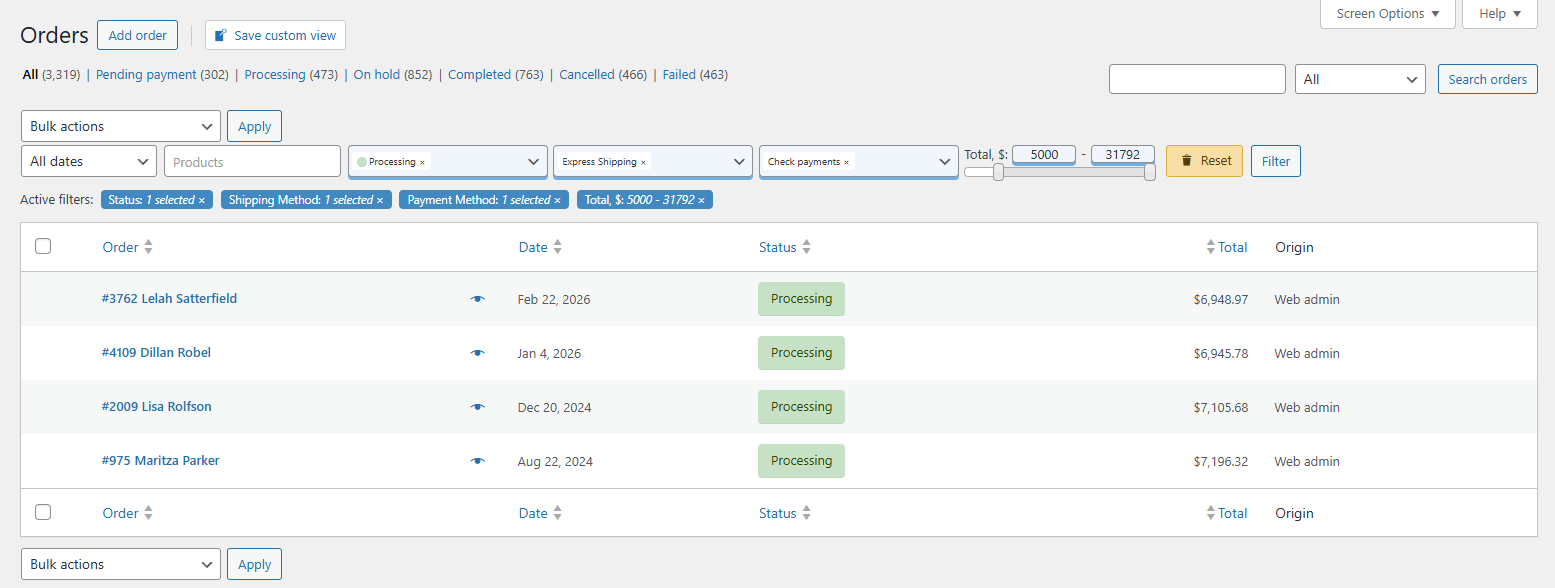
Here’s the real payoff. Each filter alone is useful. Together, they define a workflow.
A practical VIP Queue setup:
- Order Total: Minimum $500
- Status: Processing (orders ready to ship)
- Shipping Method: Express Shipping, Overnight
- Payment Method: Credit Card, PayPal (already paid, safe to ship)
This gives you a short list of woocommerce high value orders that are ready to ship, already paid, and on rush shipping. The orders your team should handle first, every single day.
Filters combine with AND logic. Every condition must match. If you set the total to $500+ and shipping to Express, you’ll only see orders that are both high-value AND use express shipping. That’s exactly what you want for a priority queue.
Save it as a view (so you never rebuild it)
You’ve spent two minutes setting up the perfect filter combination. Don’t lose it.
- Click the + button in the custom views block above your orders list
- Name it something clear: “VIP Queue” or “High-Value Rush”
- Pick a color (red works well for priority items)
- Check Pin this view so it appears as a badge above your list
- Click Save
Done. Tomorrow morning, click “VIP Queue” and the same filtered list loads instantly. No re-entering filter values. No remembering what you set yesterday. If your team already uses saved views for WooCommerce orders, this is the same pattern with a dollar threshold on top.
Pin it for live counts
Here’s the detail that turns a saved view into a dashboard.
Pinned views show live counts right in the badge: (4) VIP Queue. That number updates every time you load the page. You can see at a glance how many woocommerce high value orders are waiting without clicking anything.
Pin your VIP Queue alongside your regular fulfillment view. Now your orders page tells you two things the moment it loads: how many total orders need processing, and how many of those are high-value priority.
Your team checks the VIP Queue first. Handles those orders. Then switches to the general fulfillment view for everything else. No orders slip through, and your biggest customers get handled first.
More filter combinations worth trying
The VIP Queue above is one combination. Here are others built on the same filters:
Pending large payments – Order Total $500+, Status: On Hold, Payment Method: Bank Transfer. Shows big orders waiting for manual payment confirmation. Check this view before your daily bank reconciliation.
High-value returns – Order Total $300+, Status: Refunded. Expensive returns deserve a closer look. Is there a product quality issue? A pattern with a specific item?
Wholesale fulfillment – Customer Role: Wholesale, Status: Processing. Skip the total filter entirely since wholesale orders are large by definition. Add shipping-specific columns (ship-to country, tracking number) to this view for a dedicated B2B workflow.
Guest checkout review – Order Total $200+, Registered Customers Only: Guests. Large orders from unregistered buyers. A quick fraud check before shipping protects your bottom line.
Try it yourself
The filters described here take about two minutes to set up. The saved view takes another 30 seconds.
Open your WooCommerce orders screen and try it: enable the Order Total filter, set a minimum value, and watch your woocommerce high value orders appear. Then stack Shipping Method or Payment Method on top and see how the results narrow.
Once you’ve built a combination that matches your workflow, save it as a view. That’s the point where a filter becomes a system – something your whole team uses without thinking about it. For the one-click workflow pattern behind any VIP queue, see saved views for WooCommerce orders.
For detailed setup instructions, check the OrderFusion documentation.